Stock check
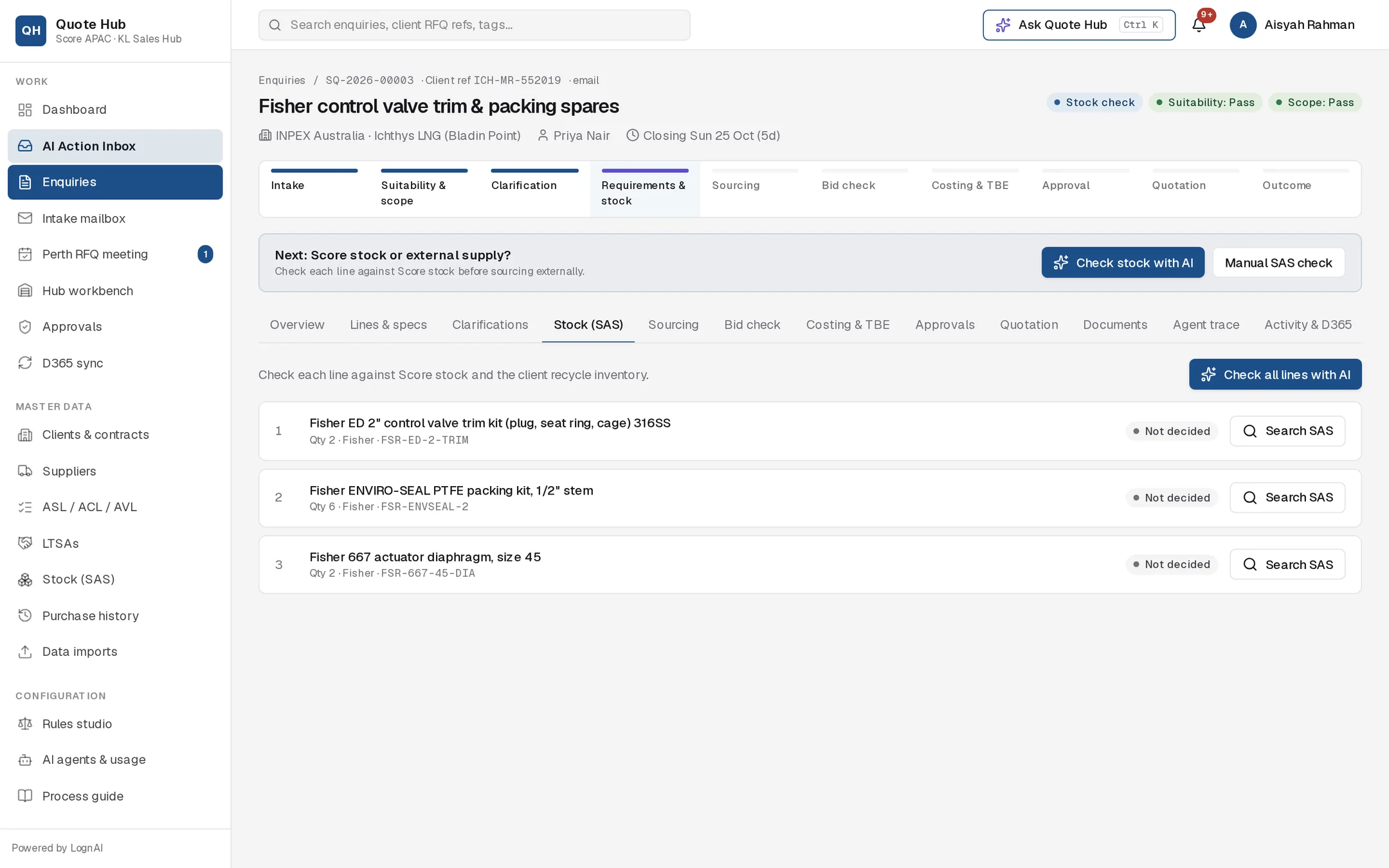
Check each line against Score stock in SAS and decide whether it ships from stock or is sourced externally.
Before anything goes to the KL hub, check whether Score already holds the item. Each line ends up with a route: from stock, partly from stock, or external supply.
How it works
Quote Hub searches the SAS stock list, which is refreshed from the SAS export (see Stock (SAS)). Each line is compared on part number, manufacturer, model, size, pressure rating, set pressure, orifice and description. Each candidate gets a match percentage and a list of the attributes that matched.
The search includes Woodside's recycle valve inventory and any other client-owned recycle stock. Recycle stock is only offered on enquiries from the client that owns it. Items in quarantine are never offered.
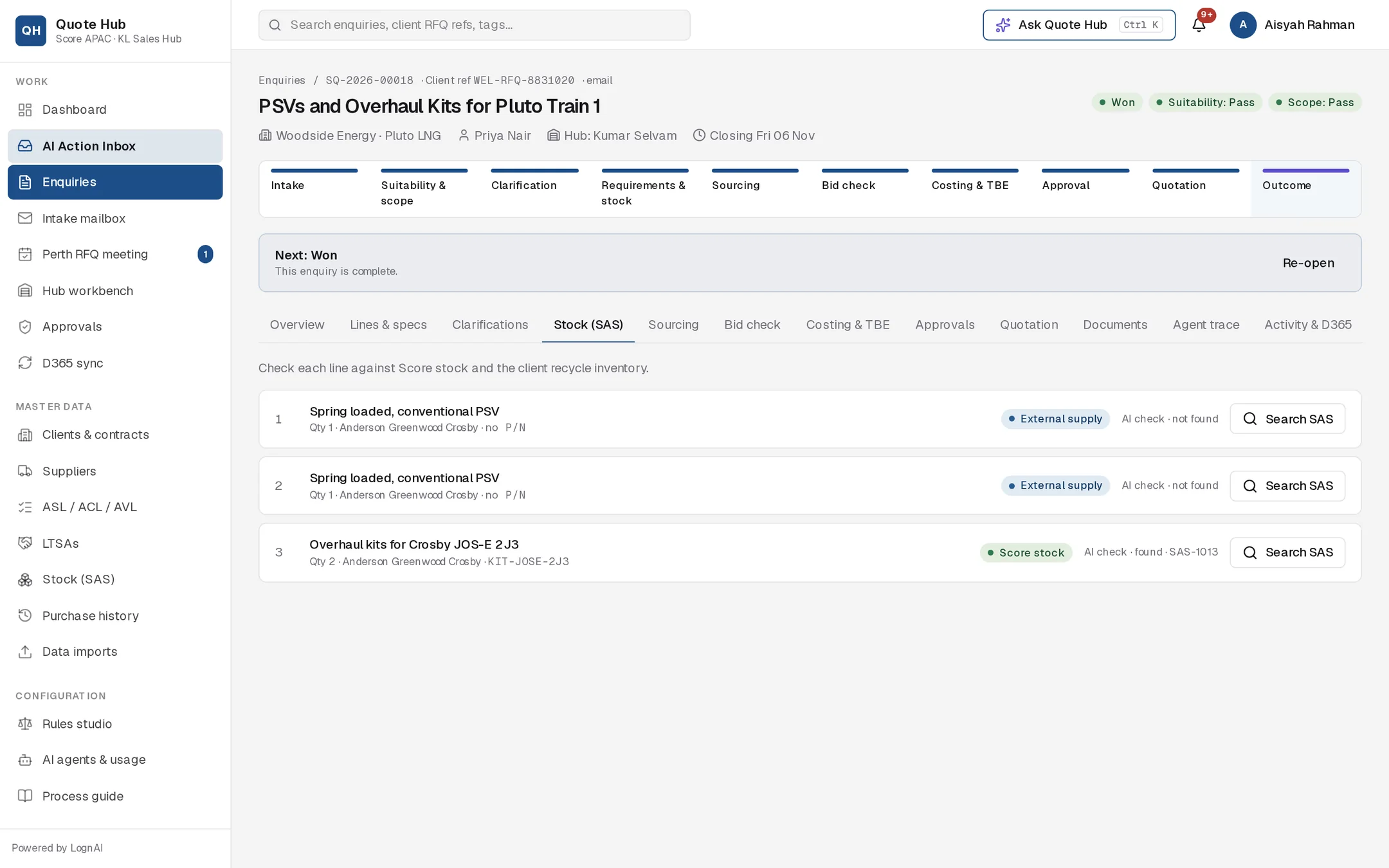
Each line shows its current route and the last check result:
| Route | Meaning |
|---|---|
| Not decided | Not checked yet |
| Score stock | Fully supplied from Score stock |
| Part stock | Part of the quantity from stock, the rest sourced externally |
| External supply | Sourced through the KL hub |
The note next to the route shows how the check was done (AI check or Manual check), the result (found, partly available, not found or awaiting manual check) and the stock code used.
Check with AI

Run the check
Select Check stock with AI in the next-action bar, or Check all lines with AI on the Stock (SAS) tab.
Review the proposal
The Fulfilment Agent proposes a route for every line, with the stock code, the quantity from stock and a one-line reason. Lines it could not confirm from the SAS data are marked check SAS. Select Why? to read the full reasoning.
Adjust and approve
Change any route or quantity in the proposal, then select Approve (or Approve with edits). Select Reject to discard it and record the lines yourself.
Record a manual SAS check
Use this when you checked SAS directly, or when a line is marked check SAS.
Search the line
Select Manual SAS check, then Search SAS on the line. Matches show stock code, description, available quantity, warehouse, condition, match percentage and why it matched. If nothing matches you see "No SAS matches — likely external supply."
Pick the stock item
Select the radio button for the item to use. Quote Hub sets the route to Score stock if the available quantity covers the line, otherwise Part stock, part external, and fills in Qty from stock.
Record the result
Adjust the Route and quantity if needed, add a note (for example "checked directly in SAS") and select Record result. Choose External supply for items not held.
The result follows the route: Score stock records found, Part stock, part external records partly available, External supply records not found.
What happens next
- The quantity taken from stock is reserved against the SAS item, so it no longer shows as available on other enquiries. Recording a line again releases its previous reservation first, so quantities are never reserved twice.
- Once every line has a route, the enquiry moves to Sourcing if any line is external or partial, or straight to Costing if everything comes from stock.
- A Part stock line goes to the hub for the full quantity so suppliers can quote it. On the costing sheet only the quantity not covered by stock is priced at the supplier offer. See Costing.
- When you approve the Fulfilment Agent's proposal, Quote Hub also starts the Sourcing Strategist for the external lines, or builds the costing sheet when every line is from stock. Continue with Sourcing or Costing & TBE.
Good to know
- Stock lines are costed at the SAS unit cost with the stock margin. See Costing & TBE.
- Every check is kept with who did it and when. Recording a line again adds a new check; the latest one is shown.
- The Fulfilment Agent skips excluded (no-quote) lines.