AI Action Inbox
Review, edit, approve or reject every action an AI agent recommends before it happens.
When an agent finishes its work, it does not act on its own. It sends a proposal: a recommended action with its reasons. Proposals collect in the AI Action Inbox. Nothing is sent or changed until a person approves.
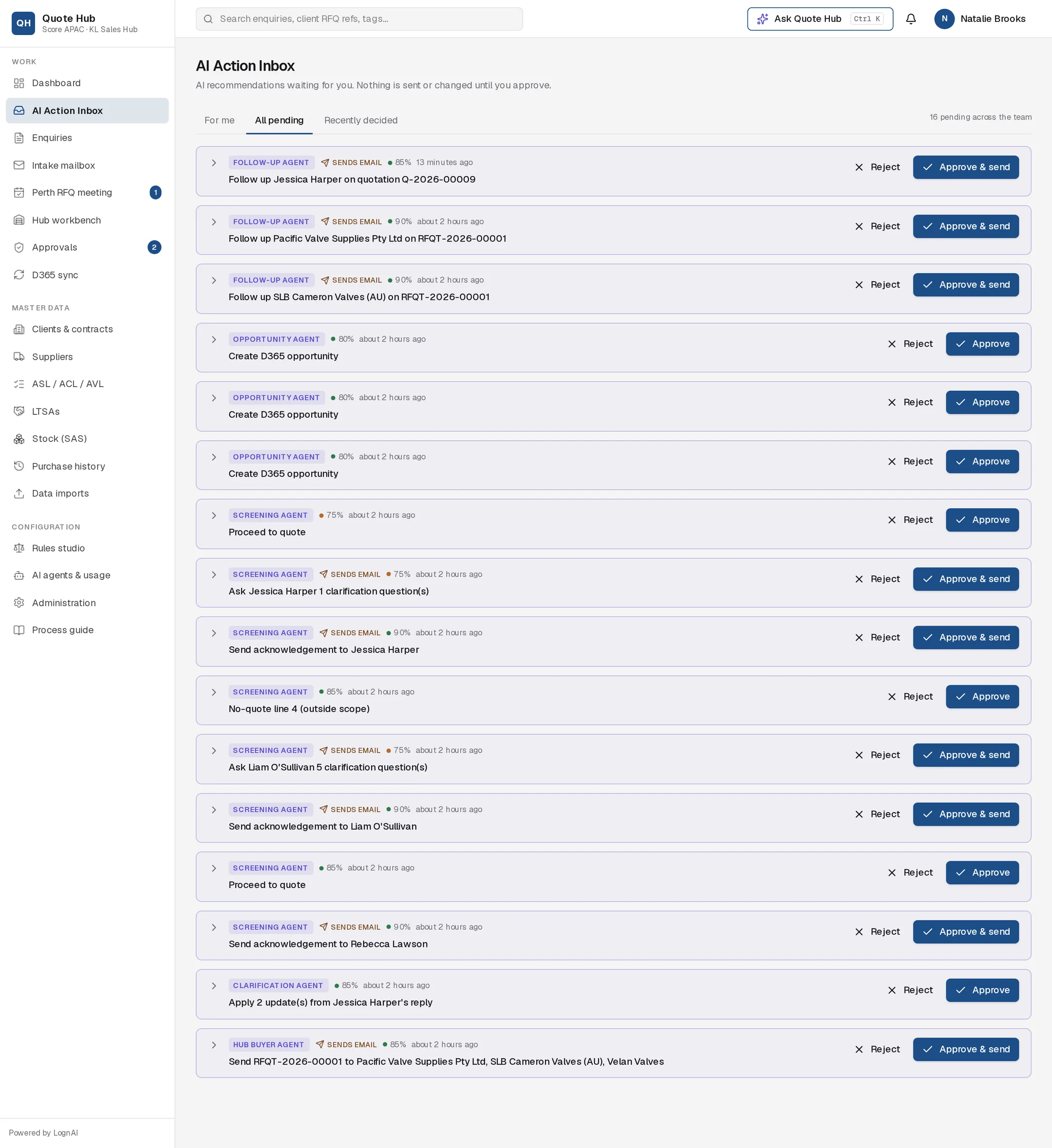
Where proposals appear
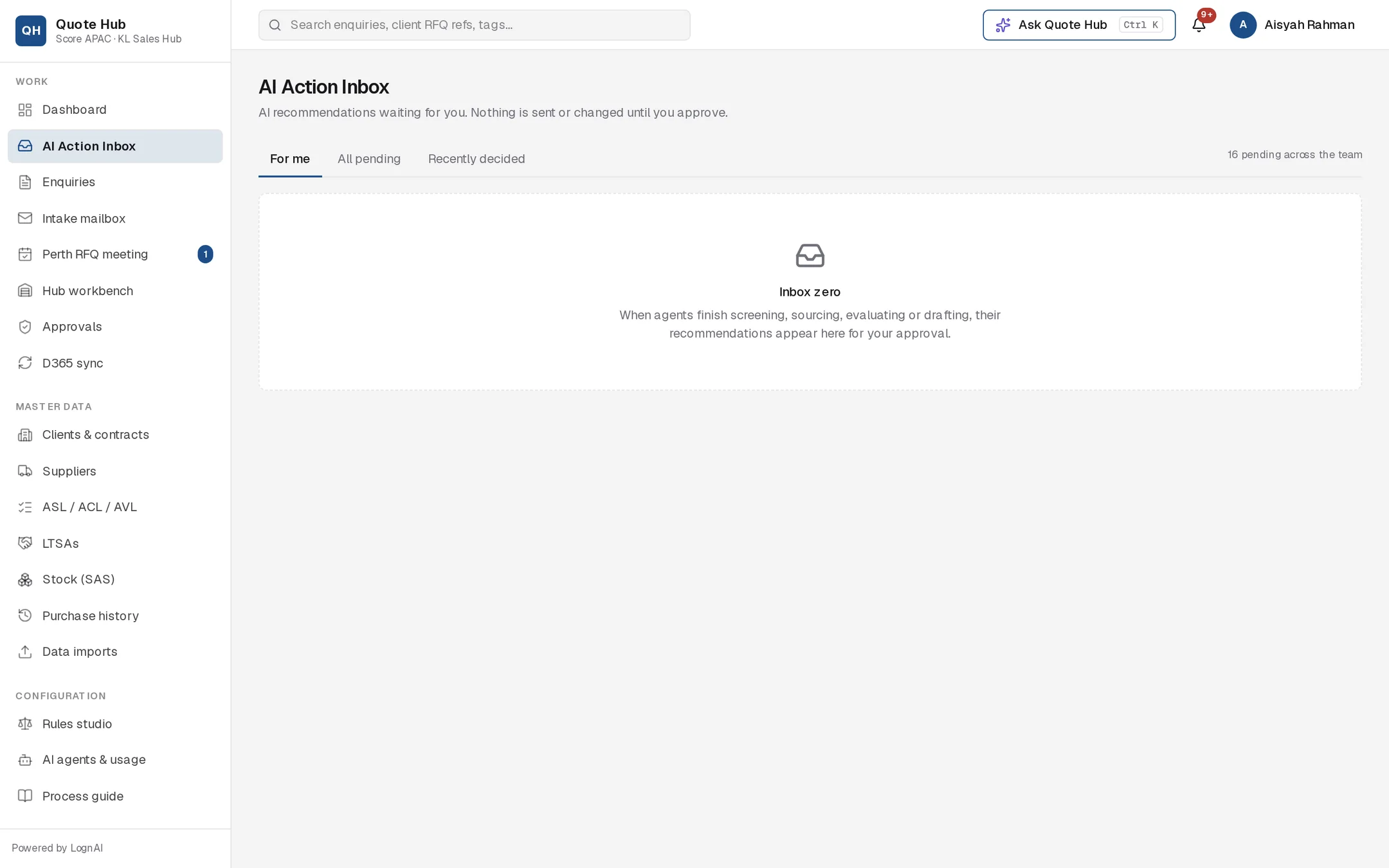
- AI Action Inbox in the left navigation. The badge shows how many proposals are waiting for you.
- Awaiting your decision at the top of an enquiry, for proposals on that enquiry.
- Hub workbench request pages, for supplier RFQ, follow-up, message and extracted-quote proposals.
- Notifications. Each new proposal sends you a notification titled "AI proposal: …". Select it to open the inbox with that proposal highlighted. The highlighted proposal is always shown, even if it is not in the tab's list.
Inbox tabs
| Tab | Shows |
|---|---|
| For me | Pending proposals assigned to you, plus unassigned ones for your role |
| All pending | Every pending proposal across the team. Administrators see all of them here and in the dashboard count |
| Recently decided | Proposals that were approved, rejected or failed, newest first |
The count at the right of the tabs shows how many proposals are pending across the team. Each tab lists up to 100 proposals.
Reading a proposal
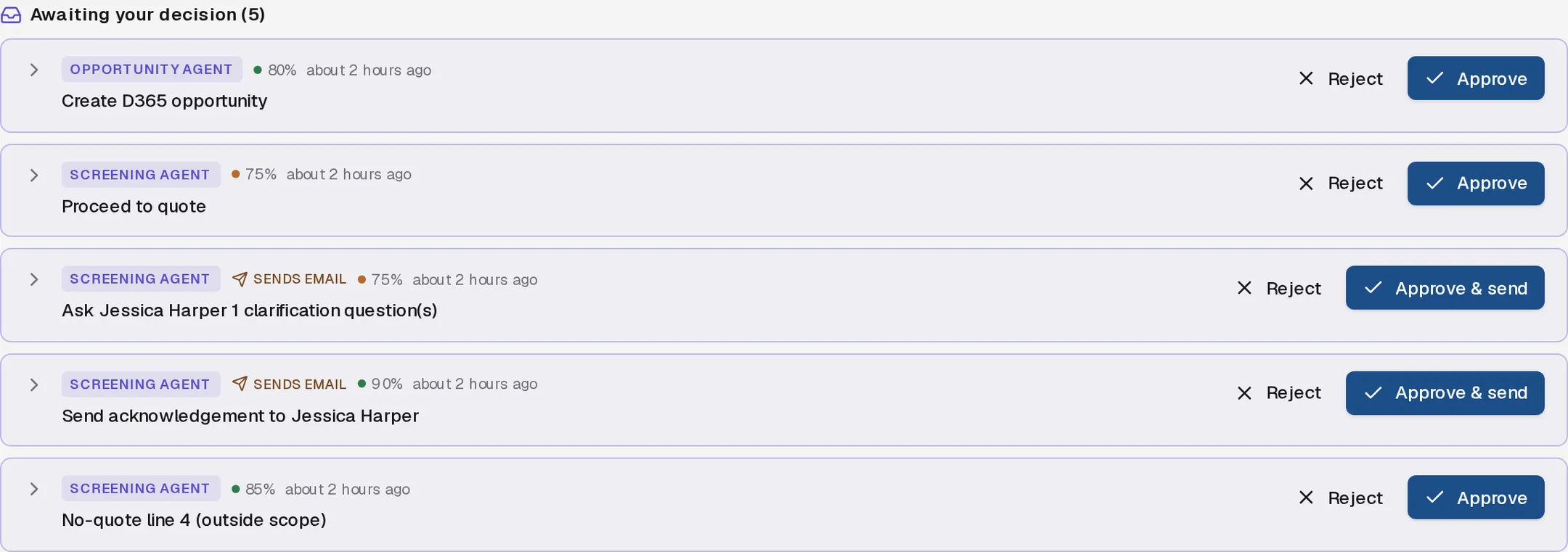
Each card shows:
- Agent: the badge names the agent that made the proposal, such as Screening Agent or Hub Buyer Agent. Proposals created without an agent run show the agent that normally prepares that kind of proposal, or Quote Hub AI.
- Sends email: shown when approving will email a client or supplier. The approve button then reads Approve & send.
- Confidence: a percentage for how sure the agent is.
- Age and title: when it was proposed and what it will do.
- Enquiry link: the SQ number, client and enquiry title. Select it to open the enquiry. The link is hidden on long lists where cards are collapsed.
Select the arrow on the left to expand a card. Cards start collapsed when there are more than six in the list. Select Why? to read the agent's reasoning.
What changes
The expanded card shows exactly what approval will do, and lets you edit it first.
| Proposal | What you see and can edit |
|---|---|
| Emails (acknowledge, decline, follow-ups, supplier messages) | Subject and message |
| Client clarification | Subject, message, and each question with its line number. Add or remove questions. |
| D365 opportunity | Topic, name, prognosis, probability, sales unit, sales process, estimated revenue, close date, owner, account number, with the reason for each value |
| Fulfilment route | Route per line (STOCK, PARTIAL, EXTERNAL), stock code, quantity from stock |
| RFQ Upload Tool form | Sourcing type, quote due date, supplier picks 1 to 5, requirement texts, and Send to hub on approval |
| Supplier selection | Objective, weights and chosen supplier per line, with a single-bid justification where needed |
| Costing | New margin per line, with the previous margin shown as "was" |
| Enquiry updates from a client reply | Each changed field, with the old value struck through and the new value |
| Extracted supplier quote | Currency, validity, Incoterms, payment terms and each line's price, lead time and compliance (read only) |
Deciding
Approve
Select Approve or Approve & send. Quote Hub runs the action straight away, using the same steps as if you had done it by hand.
Edit, then approve
Change any field on the card. The button changes to Approve with edits. The audit trail records that you approved with changes.
Reject
Select Reject and enter a reason when asked: "Reason for rejecting (recorded in the audit log)". Nothing happens to the enquiry. The reason is shown on the card and kept in the audit trail.
If an approved action cannot complete, for example because the client contact has no email address, the card shows Failed with the error. Fix the cause and do the step by hand.
Who receives what
Proposals for an enquiry go to its owner (sales engineer) or its hub buyer. If nobody is assigned, they go to everyone with that role.
A proposal can be decided by the person it is assigned to, anyone with the assigned role, a sales lead or an administrator.
| Proposal | What it does | Goes to | Sends email |
|---|---|---|---|
| Update enquiry data | Applies field changes, usually from a client's reply | Sales engineer | No |
| Decline — not in scope of supply | Emails the client a decline and closes the enquiry | Sales engineer | Yes |
| Acknowledge enquiry to client | Emails the client a receipt and creates the enquiry folder | Sales engineer | Yes |
| Table at Perth RFQ meeting | Adds the enquiry to today's Perth meeting agenda | Sales engineer | No |
| Proceed to quote | Moves the enquiry to requirements review and starts the stock check | Sales engineer | No |
| No-quote out-of-scope lines | Excludes lines outside scope, with the reason shown on the quotation | Sales engineer | No |
| Create D365 opportunity | Records the opportunity and queues it for D365 | Sales engineer | No |
| Send clarification to client | Emails questions with a client portal link | Sales engineer | Yes |
| Follow up client | Sends a reminder on unanswered questions | Sales engineer | Yes |
| Set fulfilment route | Sets stock, partial or external per line | Sales engineer | No |
| Create RFQ Upload Tool form | Creates the sourcing request and supplier shortlist | Sales engineer | No |
| Send online RFQ to suppliers | Emails each shortlisted supplier a supplier portal link | Hub buyer | Yes |
| Follow up supplier | Sends a reminder for a quotation not yet received | Hub buyer | Yes |
| Message supplier | Sends a message on a supplier's RFQ | Hub buyer | Yes |
| Record extracted supplier quote | Saves a quotation read from an uploaded document | Hub buyer | No |
| Apply supplier selection | Saves the bid check selection and builds the costing sheet | Sales engineer | No |
| Apply costing | Changes margins and adds TBE notes | Sales engineer | No |
| Submit quotation to client | Emails the quotation with a client portal link | Sales engineer | Yes |
Good to know
- Superseded proposals. When an agent runs again, a new proposal replaces the older pending one of the same kind for the same item, and the older one is marked Superseded. Re-running screening replaces all undecided screening proposals. Superseded proposals do not appear in the inbox; you can still see them on the enquiry's Agent trace tab.
- Autopilot. An administrator can set some internal proposal types to approve automatically. Proposals that send email can never run automatically: Quote Hub always waits for a person, whatever the setting. See Automation.
- Approving a proposal often starts the next agent. For example, approving Proceed to quote starts the stock check. See AI agents.