Automation & policies
Set autopilot, follow-up reminders, approval limits, costing defaults and the mailbox check schedule.
The Automation & policies tab holds the settings that control how much Quote Hub does on its own and the defaults it applies to every quote. Only Administrators can open it.
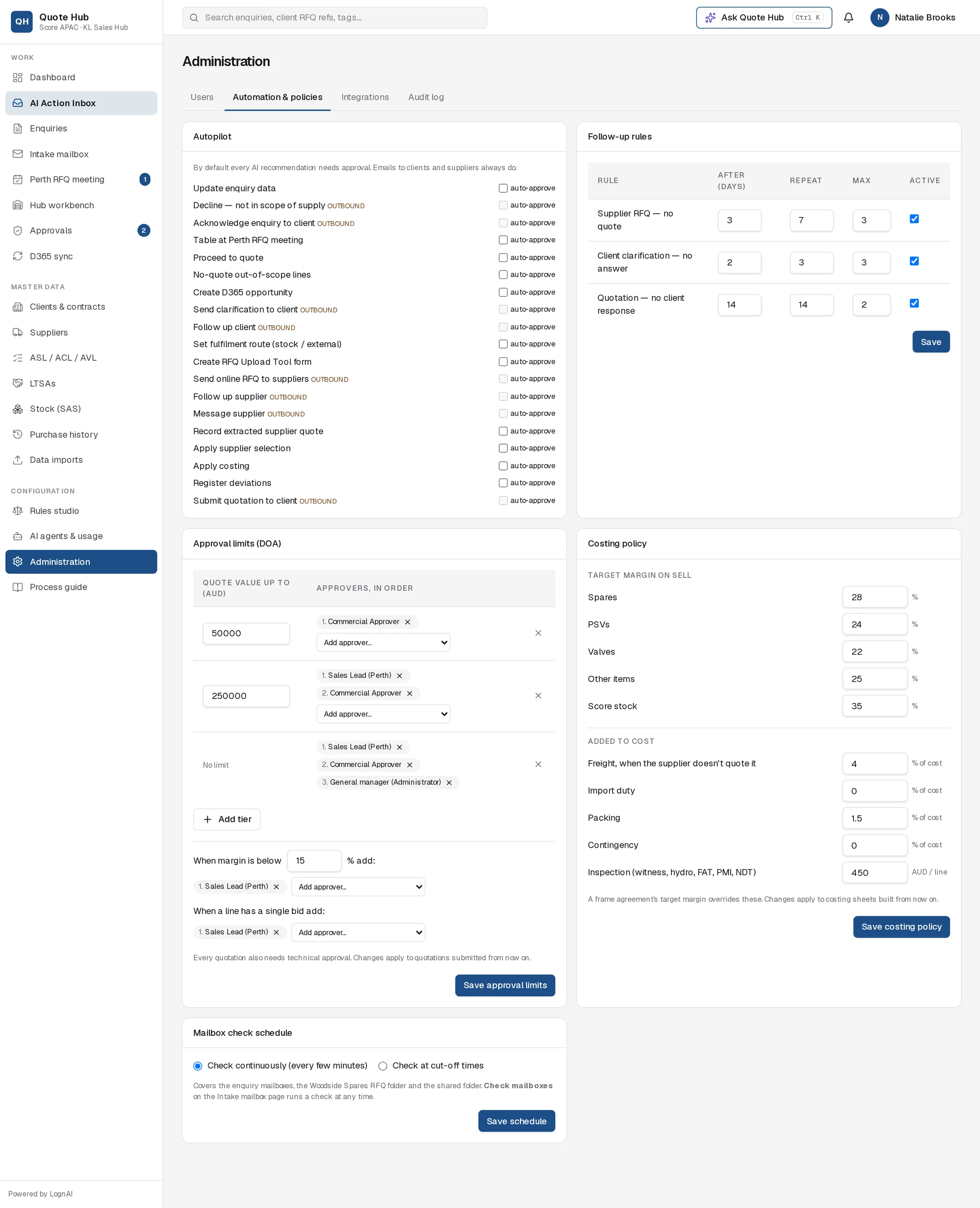
Autopilot
By default every AI recommendation waits for a person to approve it in the AI Action Inbox. Autopilot lets you approve selected internal actions automatically.
- Tick auto-approve next to a proposal type, for example Update enquiry data or Set fulfilment route (stock / external). The change saves straight away.
- Types marked outbound send email to a client or supplier, such as Acknowledge enquiry to client or Send online RFQ to suppliers. Their box cannot be ticked, and Quote Hub never runs them automatically whatever the setting: a person always approves outbound emails.
- Auto-approved proposals are recorded in the audit trail with "Autopilot" as the approver.
Follow-up rules
The Follow-up Agent checks every 15 minutes for clients and suppliers who have not responded and proposes a reminder. Each reminder is an outbound proposal, so a person approves it before it is sent.
| Rule | After (days) | Repeat | Max |
|---|---|---|---|
| Supplier RFQ — no quote | 3 | 7 | 3 |
| Client clarification — no answer | 2 | 3 | 3 |
| Quotation — no client response | 14 | 14 | 2 |
The values above are the starting defaults. After (days) is the wait before the first reminder, Repeat the days between reminders and Max the most reminders sent. Untick Active to stop a rule. Select Save under the table.
- Supplier RFQ — no quote proposes Follow up supplier to the hub buyer.
- Client clarification — no answer proposes Follow up client to the enquiry owner.
- Quotation — no client response applies to a sent quotation the client has not accepted or declined. It proposes "Follow up contact on quotation Q-…" to the enquiry owner, 14 days after sending and every 14 days after that, up to two reminders.
Approval limits (DOA)
Sets who approves a quotation commercially, by its total value in AUD. Technical approval always goes to the Technical approver.
Each row is a tier. Enter the upper limit in Quote value up to (AUD) and pick the approvers in the order they sign off with Add approver…. The top tier has no limit. Use Add tier to insert a band and the cross to remove one.
| Quote value | Default approvers |
|---|---|
| Up to 50,000 AUD | Commercial approver |
| Up to 250,000 AUD | Sales lead, then Commercial approver |
| No limit | Sales lead, Commercial approver, then General manager (Administrator) |
Below the tiers:
- When margin is below — the threshold (default 15%) and the approvers added when a quotation falls under it (default Sales lead).
- When a line has a single bid — the approvers added for single-bid quotations (default Sales lead).
Select Save approval limits. Quote Hub checks that limits increase from tier to tier, that only the top tier has no limit and that every tier has an approver. See Approvals.
Costing policy
The defaults the costing sheet uses for every line. See Costing.
| Field | Default | Meaning |
|---|---|---|
| Target margin: Spares, PSVs, Valves, Other items | 28%, 24%, 22%, 25% | Margin on sell when the client has no frame agreement target |
| Target margin: Score stock | 35% | Margin on quantities supplied from Score stock |
| Freight, when the supplier doesn't quote it | 4% of cost | Used when the supplier quote states no freight |
| Import duty | 0% of cost | Added to the supplier price |
| Packing | 1.5% of cost | Added to the supplier or stock cost |
| Contingency | 0% of cost | Added to the supplier or stock cost |
| Inspection | 450 AUD per line | Added to lines with witness, hydro, FAT, PMI or NDT requirements |
Select Save costing policy. Percentages must be between 0 and the field's limit; Quote Hub tells you which value to fix if one is out of range.
Mailbox check schedule
Controls when Quote Hub checks the enquiry mailboxes, the Woodside Spares RFQ folder and the shared folder for new enquiries. See Intake.
- Check continuously (default): checked every few minutes.
- Check at cut-off times: checked only at the times you list (default 07:30 and 13:00). Add or remove times and choose the Time zone: Kuala Lumpur, Perth, Darwin or Brisbane.
Select Save schedule. Check mailboxes on the Intake mailbox page runs a check at any time, whatever the schedule.
Policy changes apply to work done after you save, such as the next costing sheet built or the next approval requested. Existing costing sheets and approval chains are not recalculated.
Good to know
- Every saved setting is recorded in the Audit log as "setting changed".