Users
Add people to Quote Hub, set their role, disable accounts and reset passwords.
WhoAdministrator· Configuration › Administration › Users
The Users tab lists everyone who can sign in to Quote Hub. A user's role decides what they see, which proposals and approvals reach them, and what they can change.
Configuration › Administration › Users
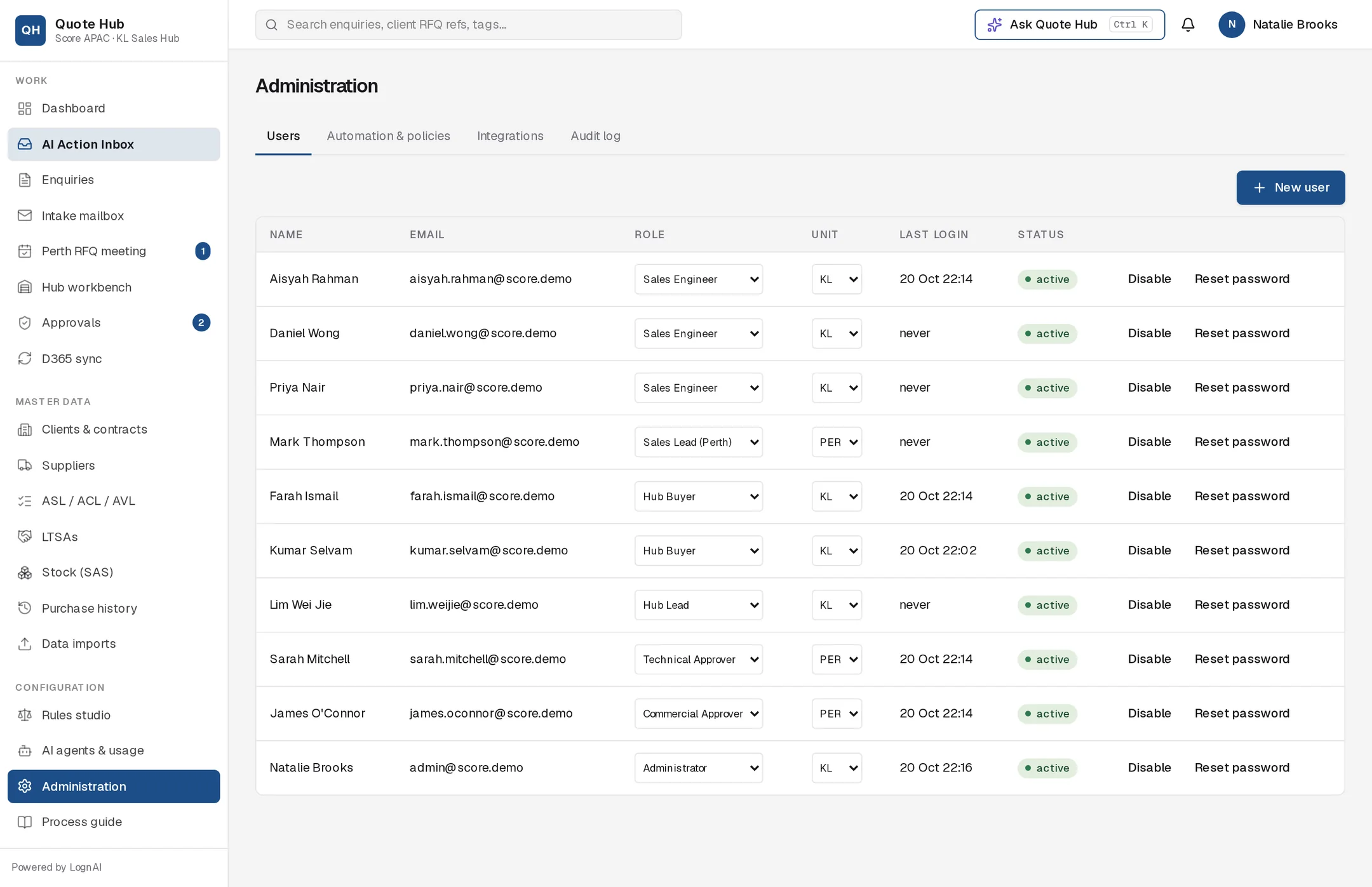
Only Administrators see Administration in the navigation.
The user list
| Column | What it shows |
|---|---|
| Name, Email | The person and their sign-in email |
| Role | The user's role. Change it here. |
| Unit | Sales unit: KL, PER, DAR or BRI. Change it here. |
| Last login | Date and time of the last sign-in, or "never" |
| Status | active or disabled |
Add a user
Open the form
Select New user.
Enter the details
Enter Name and Email, choose the role and the sales unit (KL, PER, DAR or BRI), and set an Initial password of at least 8 characters.
Create
Select Create. Give the person their password; they sign in with their email.
Roles
| Role | Typical user |
|---|---|
| Sales Engineer | KL sales engineers who own enquiries |
| Sales Lead (Perth) | Sales leads in Perth, Darwin and Brisbane |
| Hub Buyer | KL hub buyers who send RFQs to suppliers |
| Hub Lead | Lead of the KL hub |
| Technical Approver | Approves the technical bid evaluation |
| Commercial Approver | Approves price and margin |
| Administrator | Quote Hub administrators |
For what each role does in the process, see Roles.
Change a user
- Role: pick a new role in the Role column. It saves straight away.
- Sales unit: pick a new unit in the Unit column. It saves straight away.
- Disable: select Disable to stop the person signing in. Select Enable to restore access.
- Reset password: select Reset password and enter a new password of at least 8 characters.
Any of these changes signs the user out of every open session within about 15 seconds. They sign in again with their email and current password.
Good to know
- Approval limits are set per role, not per user, in the DOA policy on Automation & policies.
- Name and email cannot be changed on this tab after the user is created.
- Users cannot be deleted. Disable people who leave; their actions stay in the audit trail under their name.
- Every user created or changed is recorded in the Audit log.