Sourcing
Prepare the RFQ Upload Tool form, choose the suppliers and hand the request to the KL hub.
Lines that are not fully covered by Score stock go to the KL hub (APAC-Sourcing) for supplier quotes. On the Sourcing tab you prepare the RFQ Upload Tool form, rank the suppliers to invite and submit the form to the hub.
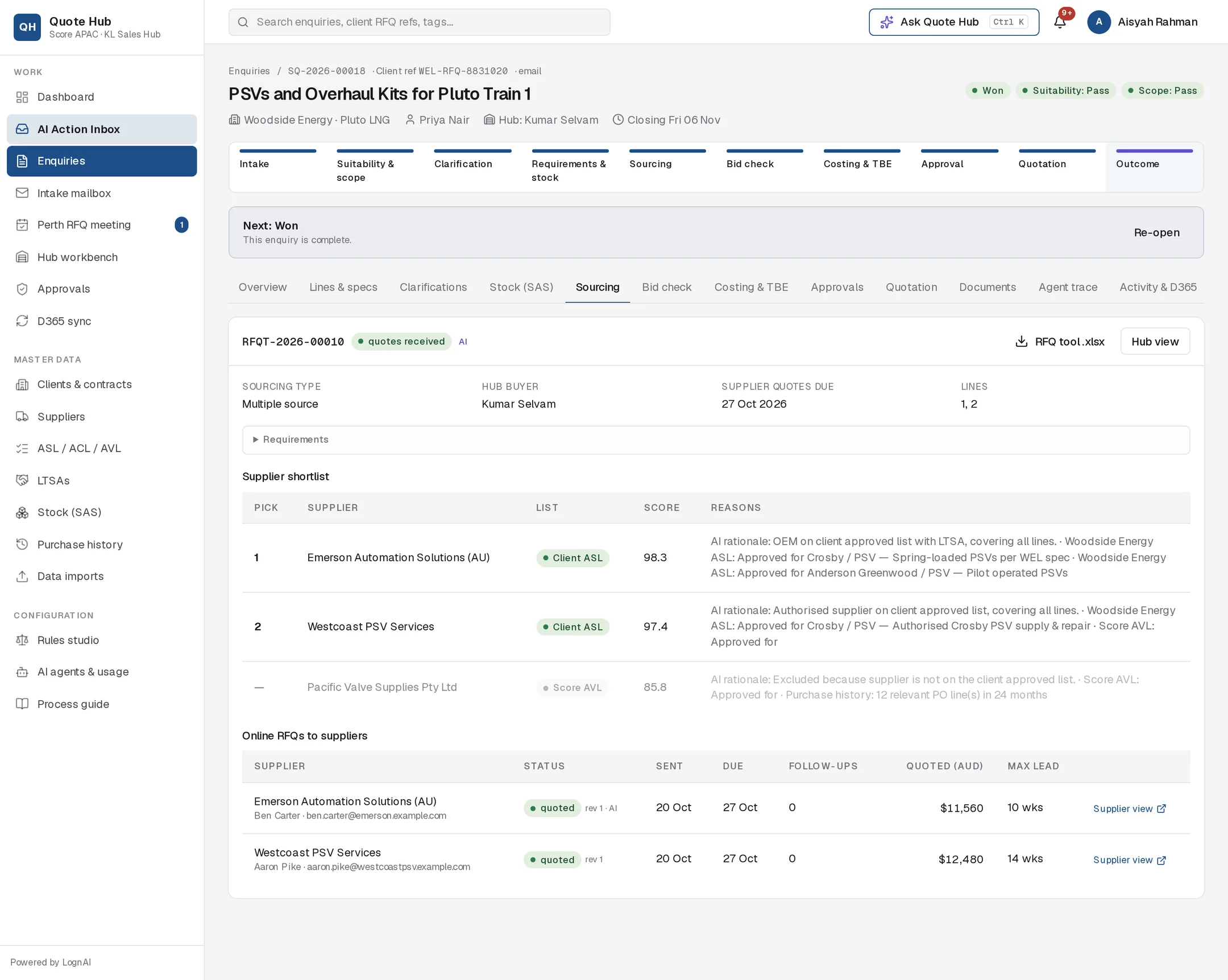
The supplier cascade
Quote Hub builds the candidate list from Score's approved lists, LTSAs and purchase history, in a fixed order of preference:
- 1Client ASLThe client's own approved supplier list. Mandatory for clients that enforce it (e.g. Woodside).
- 2Score ACLScore's approved contractor list for the brand and product type.
- 3LTSASuppliers with a long-term supply agreement — agreed discount and lead time.
- 4Score AVLScore's approved vendor list.
- 5Purchase historySuppliers Score has bought the same part or brand from in the last 24 months.
- 6New supplierOnly when nothing above fits; needs a justification.
| List | Where it comes from |
|---|---|
| Client ASL | The client's approved supplier list, for the brand and product type on the line |
| Score ACL | Score's approved critical supplier list |
| LTSA | Suppliers with a current long-term agreement covering the brand or product type |
| Score AVL | Score's approved vendor list |
| Purchase history | Suppliers Score has bought the part or brand from in the last 24 months |
| New supplier | The OEM or authorised agent for the brand, not yet on any list |
Suspended and expired list entries are ignored. See Approved lists and LTSAs.
Each candidate gets a score out of 100 made up of its list (40), how many of the lines it covers (25), delivery, quality and responsiveness performance (20) and relevant purchase history (15). The reasons column shows the list entries, LTSA number and discount, last price paid and performance figures behind the score.
Client ASL enforcement
Some clients, such as Woodside, only accept suppliers from their own approved list. For these clients, when at least one candidate is on the client's ASL, every other candidate is greyed out with the reason "requires suppliers from its approved list" and cannot be given a rank.
Build the form with AI
Run the Sourcing Strategist
Select Build RFQ with AI in the next-action bar, or Build with AI on the Sourcing tab. The agent also runs automatically after you approve a stock check that leaves lines for external supply.
Review the proposal
The proposal holds the full form: sourcing type, the date supplier quotes are due (seven days out by default), the ranked shortlist with up to three suppliers picked, and the requirement text for suppliers (technical, inspection and testing, documentation, commercial notes). Each supplier has an "AI rationale" line explaining its rank.
Adjust and approve
Change the pick order in the Pick column, edit any text, and tick Send to hub on approval if the form is ready to go. Then select Approve. Without the tick, the form is saved as a draft on the Sourcing tab.
Build the form manually
Select Build manually on the Sourcing tab. Choose the sourcing type and quote due date, fill in the requirement fields, then tick the candidates in priority order: the first one you tick is supplier 1. Select Save draft or Save & send to hub.
Single or multiple source
Choose Multiple source by default. Choose Single source when only one OEM or local agent can supply, and write the single-source justification. The justification field appears, and is kept on the form, only for Single source. When every line is the same brand and only one OEM or authorised agent covers them all, Quote Hub shows this as a single-source indicator, and the Sourcing Strategist uses it as the justification.
Submit to the hub
On a draft form, set the Pick rank (1 to 3) for each supplier you want invited, select Save selection, then Submit to hub. At least one supplier must be picked.
When you submit:
- The form status changes to submitted to hub and a hub buyer is assigned: the one already on the enquiry, or otherwise the active hub buyer with the fewest open requests. The buyer is notified.
- An RFQ Upload Tool record, listing suppliers 1 to 3, is sent to the D365 import folder. See D365 sync.
- The Hub Buyer Agent drafts the supplier invitation for the buyer to review. See Hub sourcing.
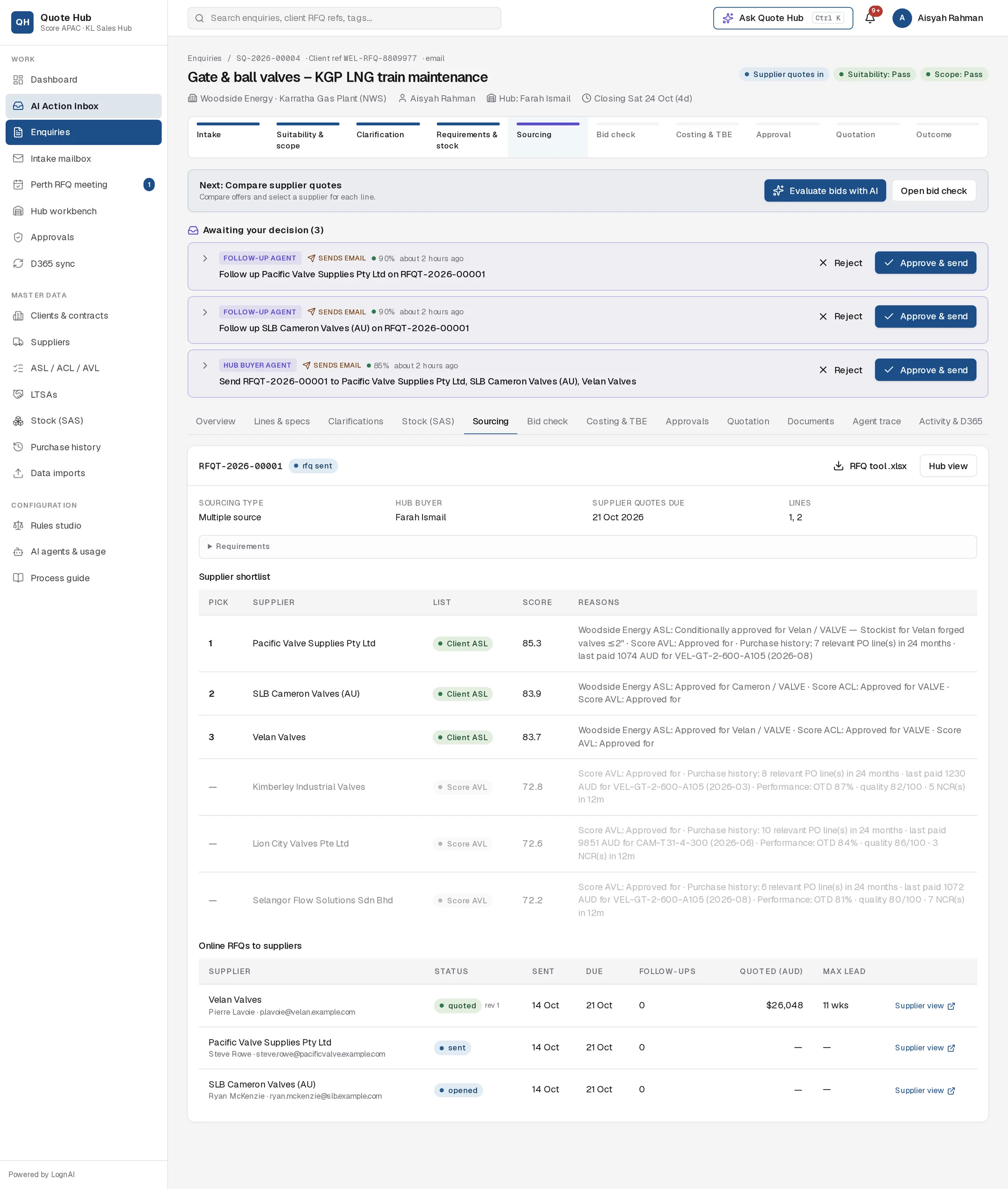
After submission the shortlist is read-only and the tab adds Hub view. Once RFQs go out, the Online RFQs to suppliers table shows each supplier's status, sent and due dates, follow-ups, quoted total in AUD and longest lead time. Supplier view opens the supplier's portal page as they see it.
Good to know
- RFQ tool .xlsx downloads the form in RFQ Upload Tool layout.
- Suppliers always quote for delivery DAP Score Group warehouse, Perth WA. The end client and site are not shared.
- If the cascade finds no candidates, the agent stops and asks you to add suppliers manually.