The enquiry workspace
Find enquiries and find your way around a single enquiry.
All work on a client enquiry happens on one page. This page covers the enquiry list and the parts of an enquiry page.
The enquiry list
Select Enquiries in the sidebar.
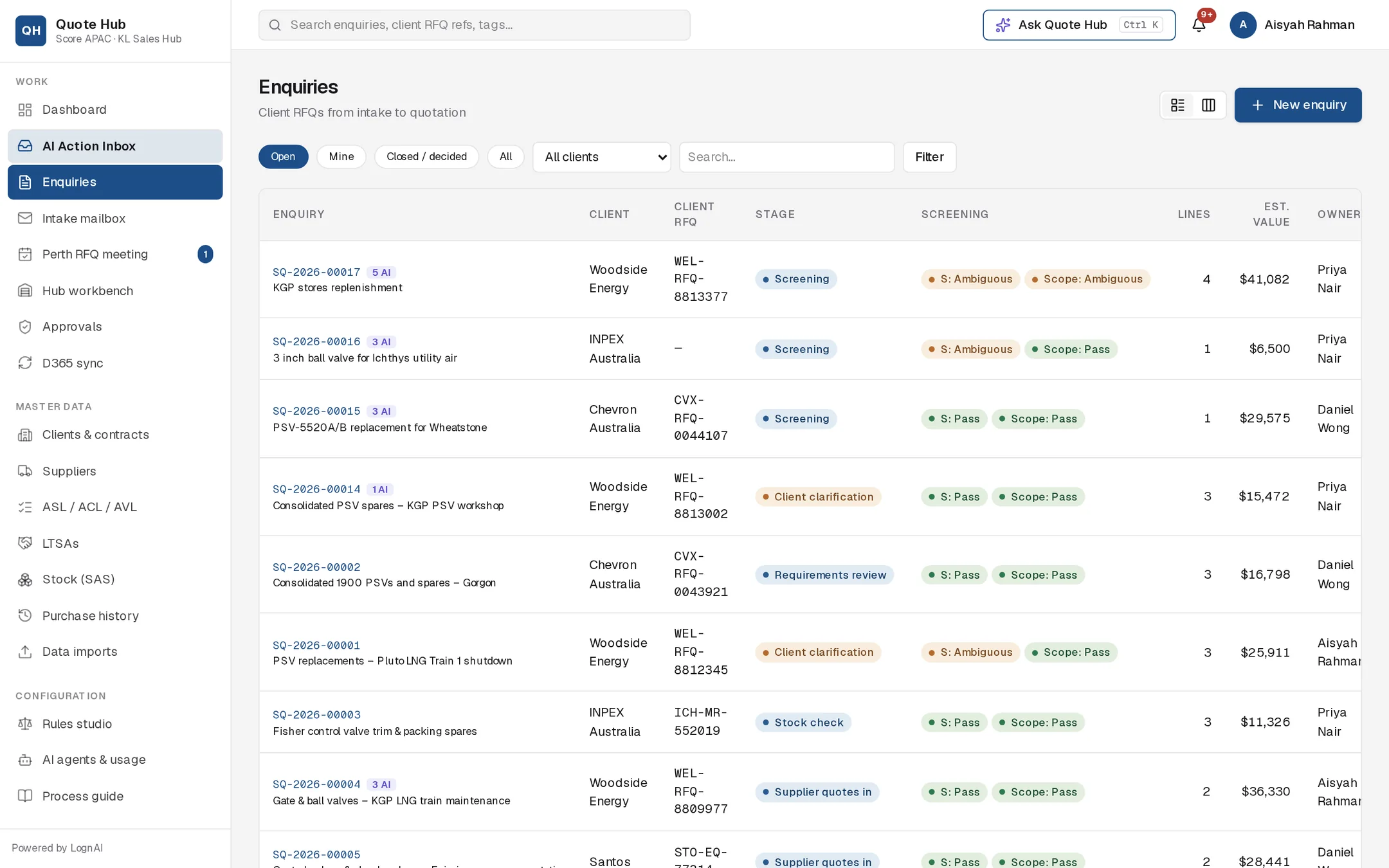
| Control | What it does |
|---|---|
| Open / Mine / Closed / decided / All | Open shows enquiries still in progress. Mine shows open enquiries you own or buy for. Closed / decided shows won, lost and closed enquiries. |
| All clients | Limits the list to one client. |
| Search… | Matches the title, the SQ number or the client RFQ reference. Select Filter to apply. |
| Table and board icons | Switch between the table and the board. |
| New enquiry | Create an enquiry by hand. See Enquiry intake. |
In the table, a purple tag such as 3 AI next to the number shows AI proposals waiting for a decision. The closing date turns red when it is two days away or less.
The board groups open enquiries by stage, with days left to closing on each card.
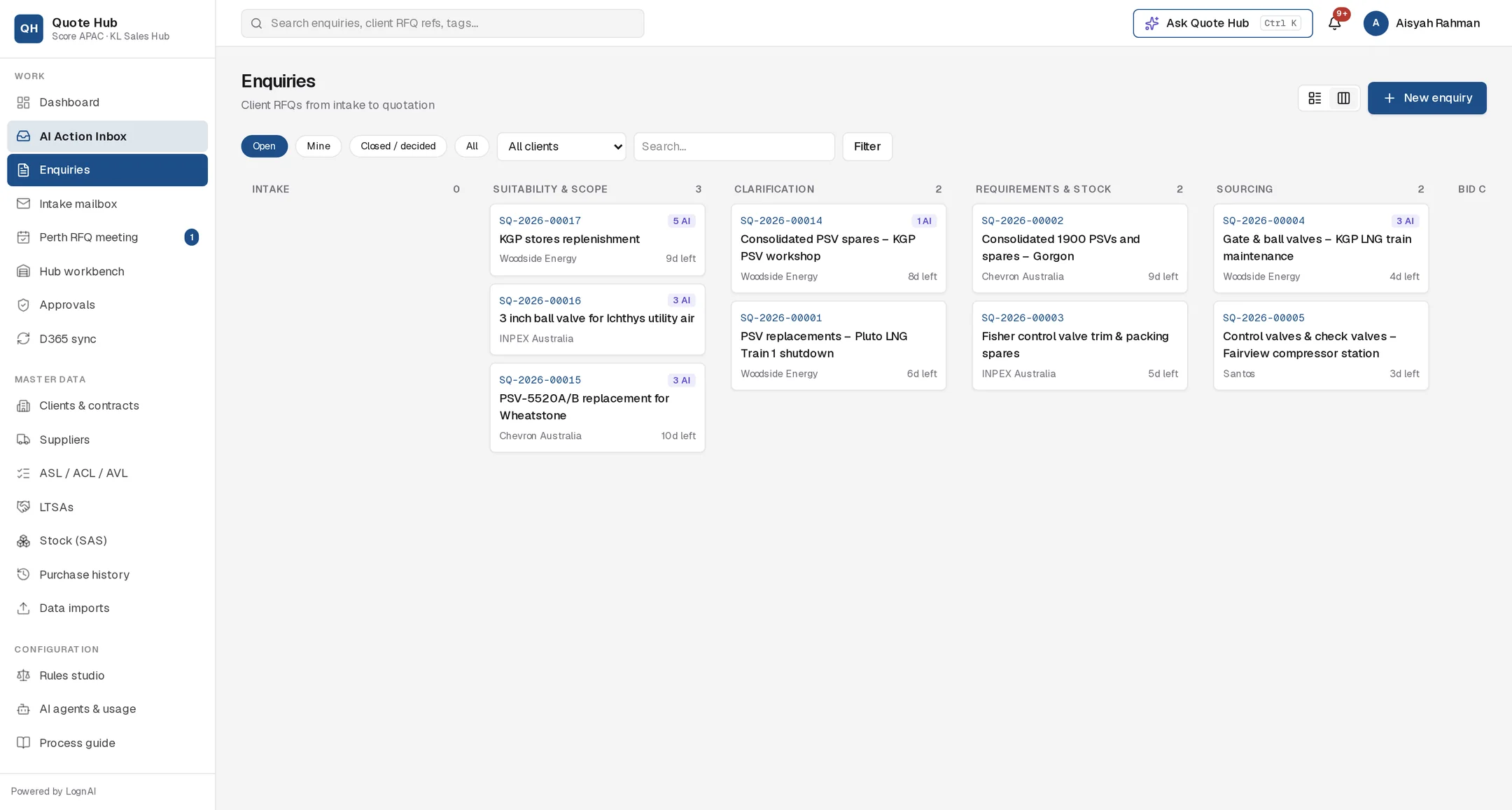
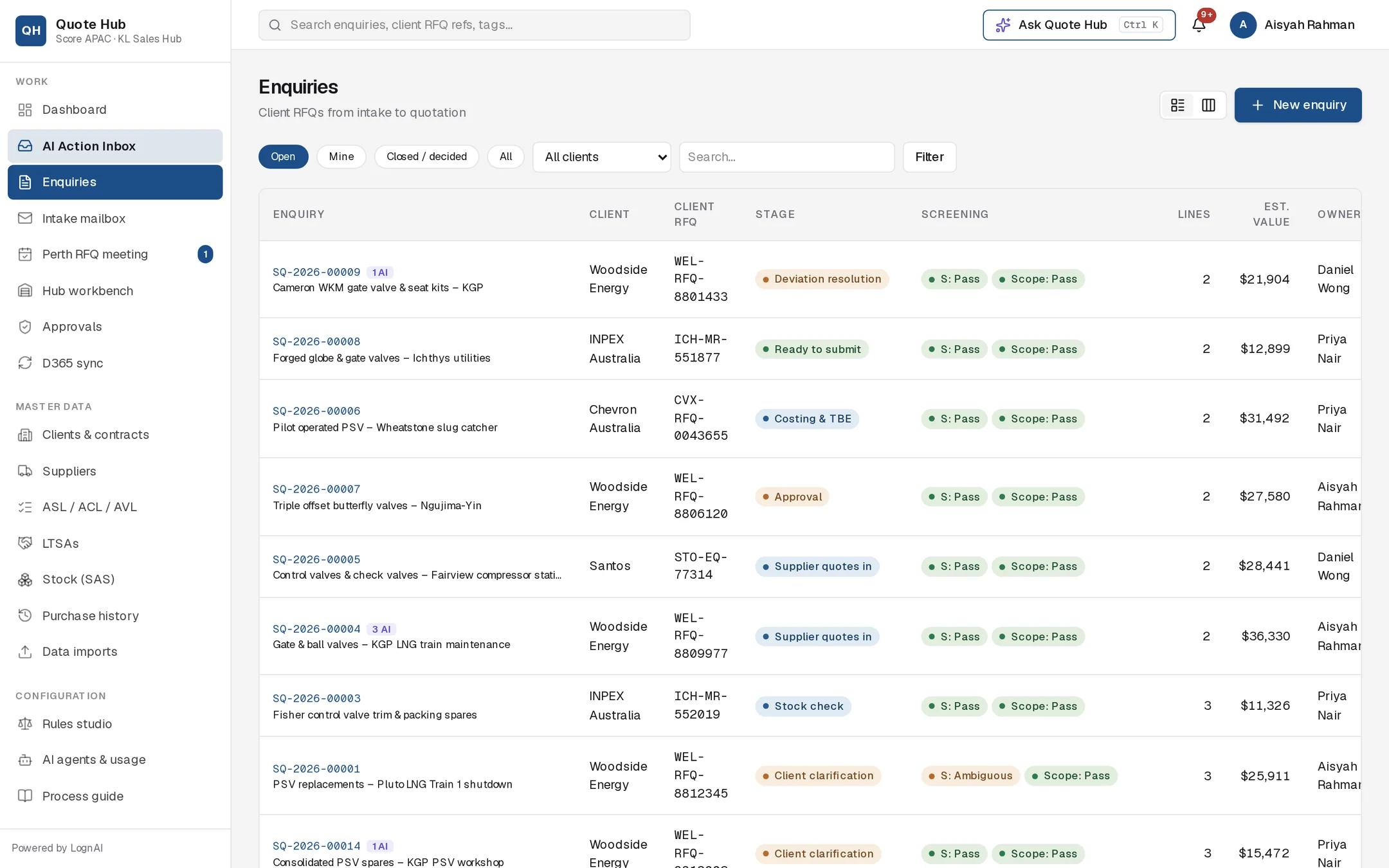
The Closing ≤ 3 days figure on the dashboard opens the list sorted by closing date, soonest first.
The enquiry header
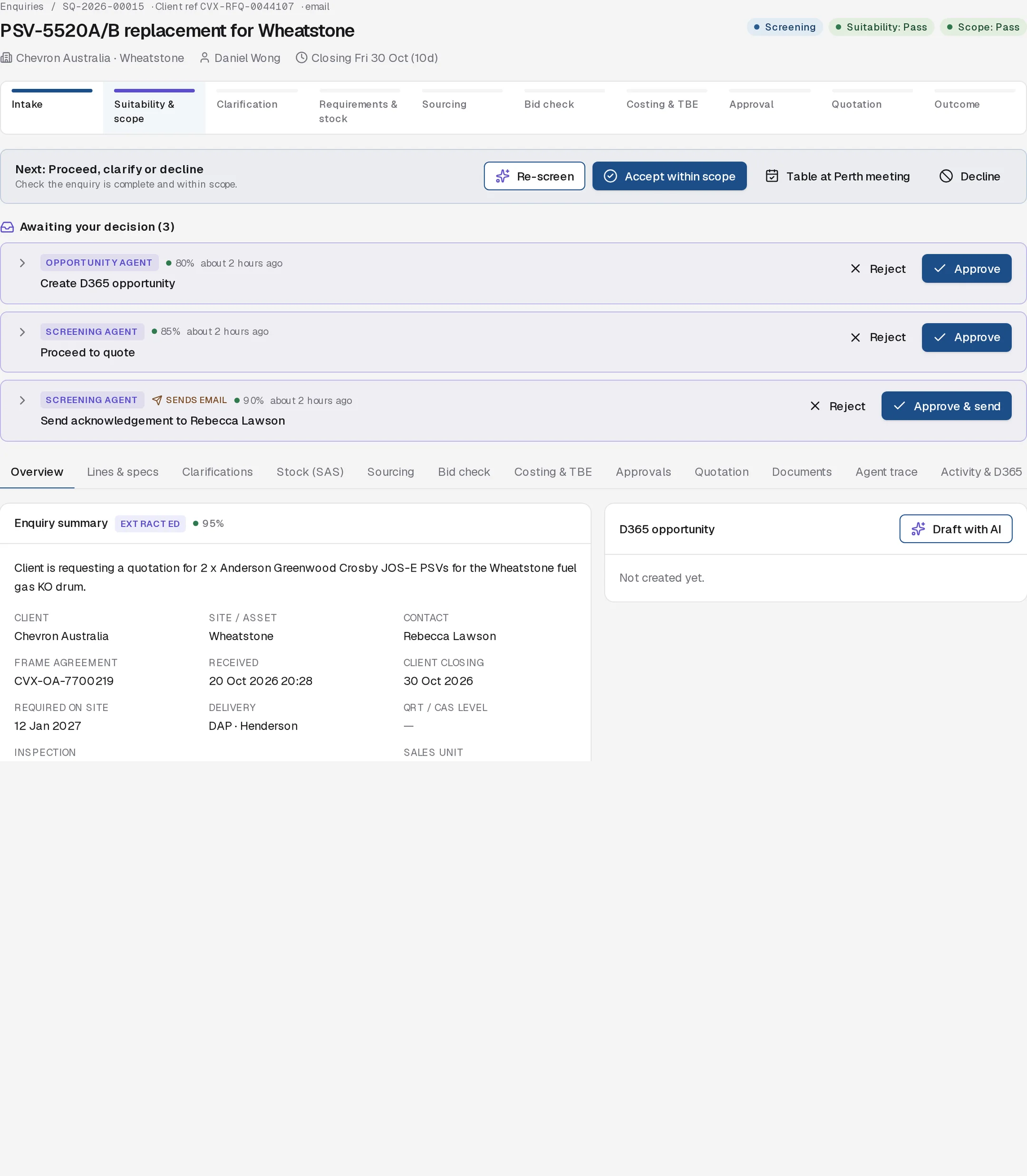
The top line shows the SQ number, the client RFQ reference and how the enquiry arrived. Under the title are the client and site, the owner, the hub buyer once assigned, and the client closing date with days remaining. The pills on the right show the status, the Suitability and Scope verdicts, and Perth meeting if the enquiry has been tabled.
Stage bar

Completed stages are dark blue, the current stage is purple and later stages are grey. Select a stage to open its tab. On an enquiry closed without a quotation, the stages between Suitability & scope and Outcome stay grey, because that work was never done.
Next step

The Next: bar shows what the enquiry needs now and the buttons to do it.
| Status | Next | Buttons |
|---|---|---|
| New, Screening | Screen this enquiry / Proceed, clarify or decline | Run screening or Re-screen, Accept within scope, Table at Perth meeting, Decline |
| Client clarification | Waiting on the client | Open clarifications, Draft more questions, Resolved — proceed |
| Requirements review, Stock check | Score stock or external supply? | Check stock with AI, Manual SAS check |
| Sourcing (before the hub) | Prepare the RFQ and supplier shortlist | Build RFQ with AI, Open sourcing |
| Sourcing (with the hub) | With the KL hub | Open sourcing |
| Supplier quotes in, Bid evaluation | Compare supplier quotes | Evaluate bids with AI, Open bid check |
| Costing & TBE | Finalise costing | Open costing, AI costing review, Submit for approval |
| Approval | Awaiting technical & commercial approval | View approvals |
| Ready to submit | Approved — send the quotation | Prepare submission, Open quotation |
| Submitted, Deviation resolution | Quotation submitted / Client reviewing deviations | Open quotation, Won, Lost |
| Won, Lost, Closed | This enquiry is complete | Re-open (owner, sales lead or administrator) |
Awaiting your decision
When an AI agent has prepared something for this enquiry, it appears under Awaiting your decision with the agent's name, its confidence and, for emails, a Sends email tag. Expand a card to see the reasoning and edit the content. Select Approve or Approve & send to carry it out, or Reject. If you edit first, the button reads Approve with edits. See AI Action Inbox.
Tabs
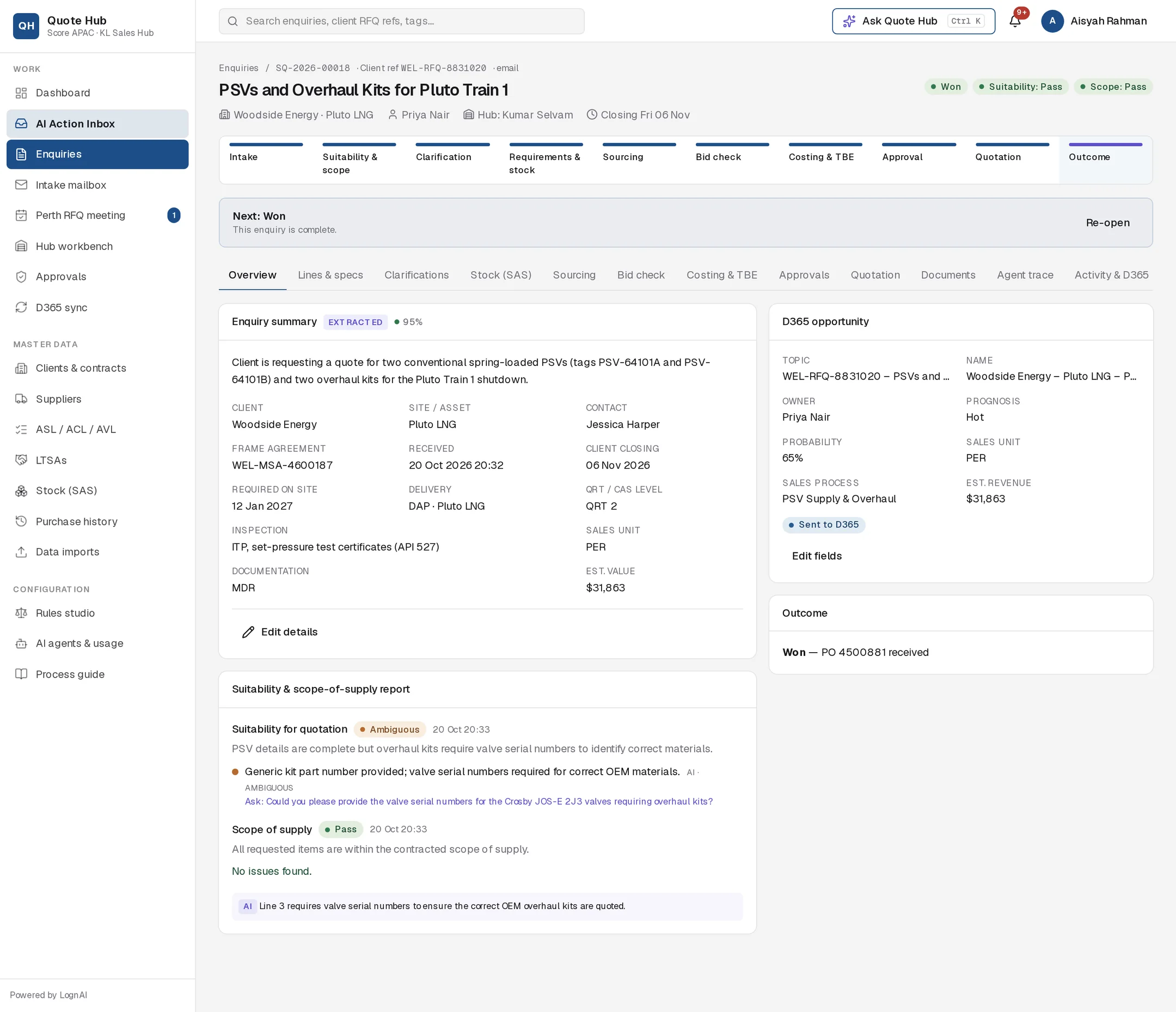
| Tab | Purpose | Guide |
|---|---|---|
| Overview | Enquiry summary, screening report, D365 opportunity, Perth meeting, outcome | Screening |
| Lines & specs | Line items and technical attributes | Lines and specs |
| Clarifications | Client questions and answers | Asking the client |
| Stock (SAS) | Score stock and recycle inventory per line | Stock check |
| Sourcing | RFQ form, supplier shortlist, supplier RFQs | Sourcing |
| Bid check | Supplier offers compared line by line | Bid check |
| Costing & TBE | Cost build-up, margin, technical review | Costing |
| Approvals | Technical and commercial approval | Approvals |
| Quotation | Cover letter, deviations, submission | Quotation |
| Documents | Enquiry documents and the OneDrive folder | D365 opportunity |
| Agent trace | What each agent did and why, and decided proposals | Agent trace |
| Activity & D365 | Audit trail, D365 sync rows and emails sent | D365 sync |
The Clarifications tab shows a count of open client threads. The Approvals tab shows a count of pending approvals.