Hub sourcing
How the KL hub sends online RFQs to suppliers, chases them and records the quotes that come back.
Once a sales engineer submits an RFQ Upload Tool form, it lands on the Hub workbench. The hub buyer sends the online RFQ to the selected suppliers, answers their questions, chases late quotes and records every offer so the sales engineer can run the bid check.
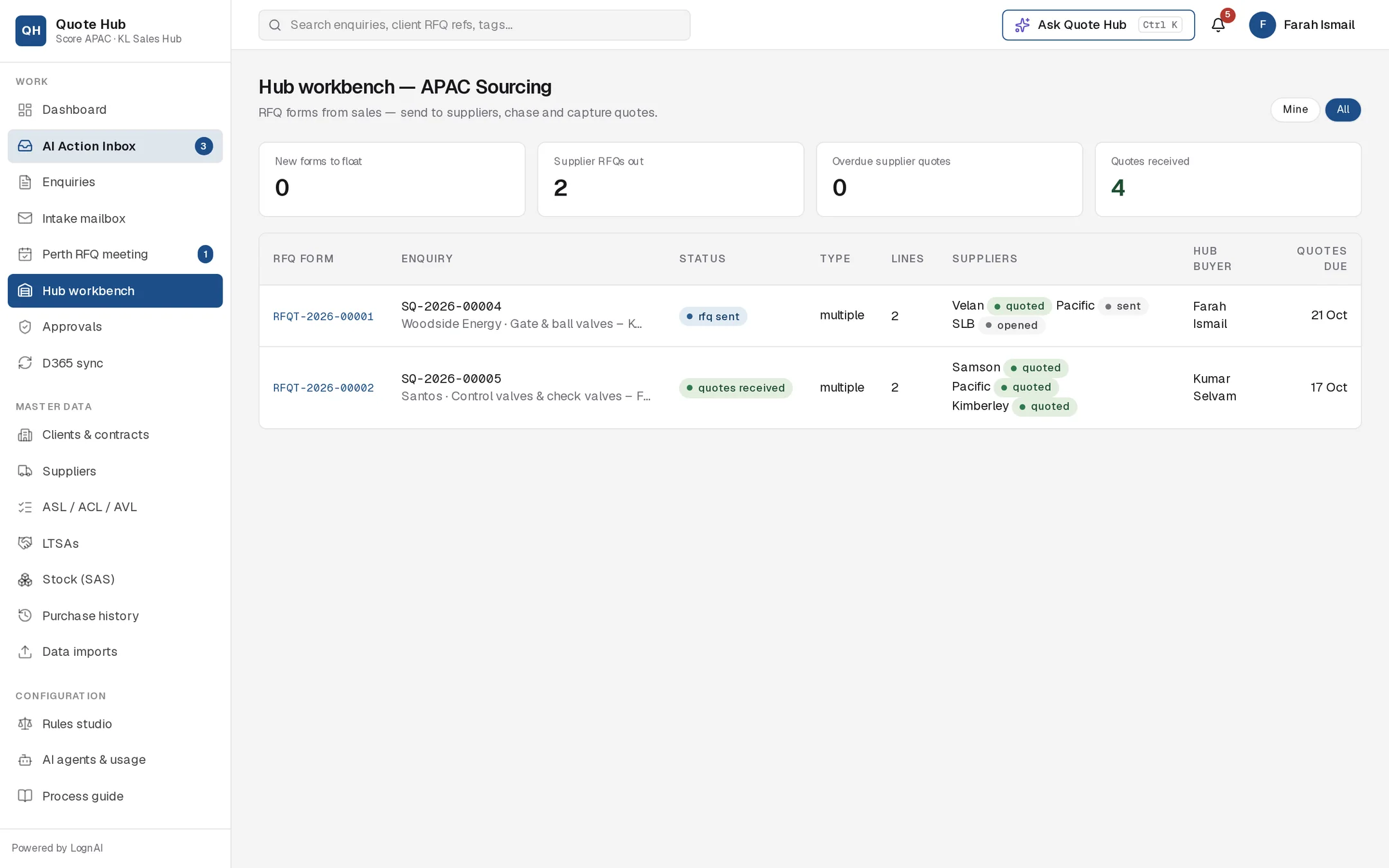
The workbench
The page opens on Mine for hub buyers and All for everyone else. Four counters sit at the top: New forms to float, Supplier RFQs out, Overdue supplier quotes and Quotes received.
Each row is one RFQ form, listed new forms first:
| Status | Meaning |
|---|---|
| new — to float | Submitted by sales, RFQ not yet sent |
| rfq sent | Online RFQ sent, quotes outstanding |
| quotes received | Every invited supplier has quoted or declined |
The Suppliers column shows each supplier's status (sent, opened, clarification, quoted, declined). A quote due date in red means the RFQ is overdue. Forms drop off the list once the enquiry moves on to costing.
Assignment
When the form is submitted, Quote Hub assigns the hub buyer already linked to the enquiry, or otherwise the active hub buyer with the fewest open forms. The buyer is notified. To reassign, pick another name in the buyer list at the top of the request page.
Send the online RFQ
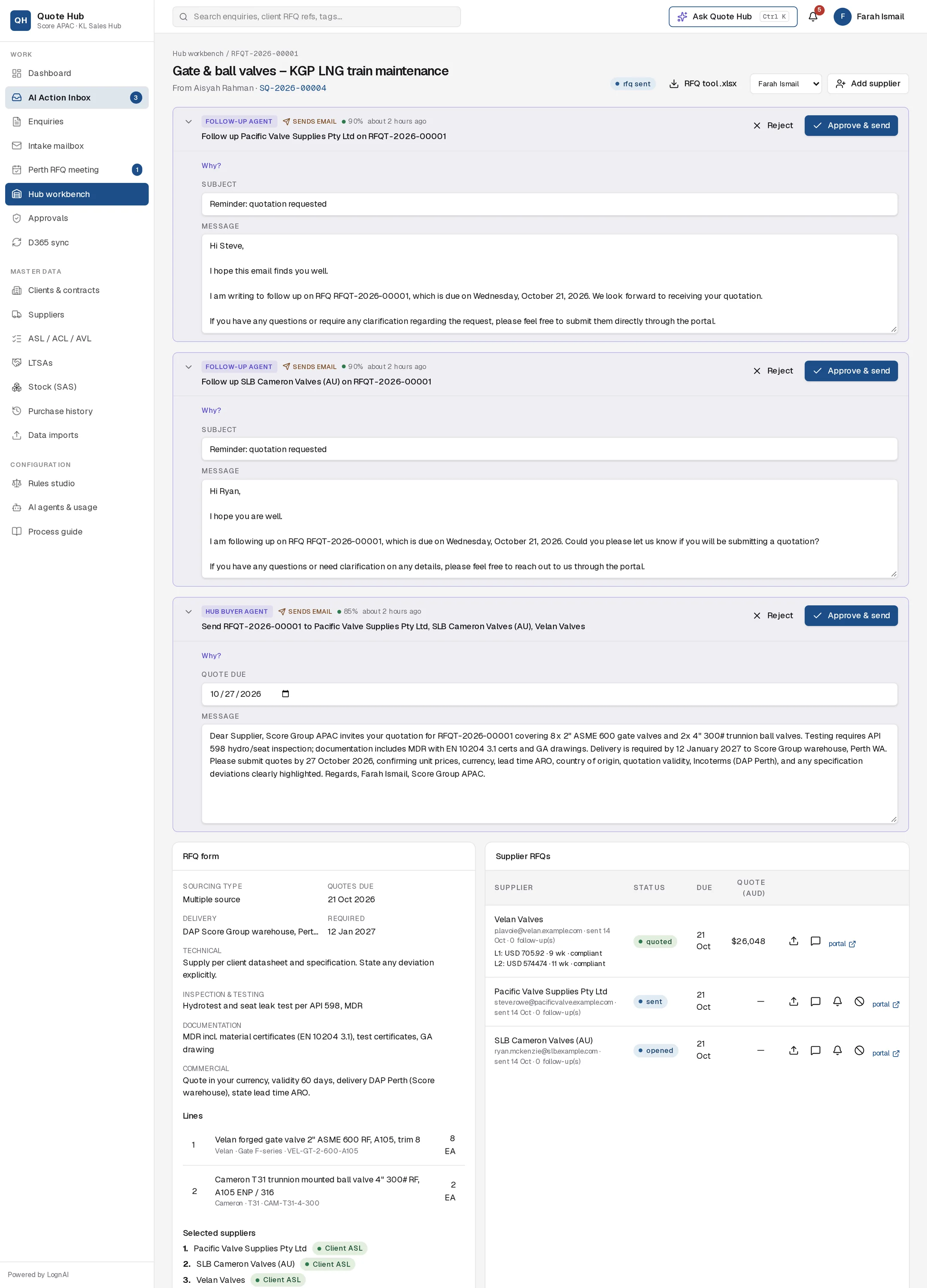
Review the form
Open the form from the workbench. The RFQ form panel shows the sourcing type, quote due date, delivery terms, required date, the requirement text, the lines and the selected suppliers in rank order. RFQ tool .xlsx downloads it.
Add suppliers if needed
Select Add supplier, choose the supplier and select Add. The supplier must have a contact email on file.
Review the draft and send
The Hub Buyer Agent drafts the RFQ message as soon as the form arrives. Check the quote due date and message on the proposal, then select Approve & send. Use AI draft RFQ for a fresh draft.
To send without the draft, select Send RFQ (n), where n is the number of suppliers not yet sent the RFQ. Set Quotes due, write a cover message or leave it blank for the standard one, and select Send.
Each supplier receives an email with the line list and a secure link to the supplier portal, where they enter prices, lead times and deviations. The form moves to rfq sent.
Send RFQ (n) and AI draft RFQ only show while some shortlisted suppliers have not been sent the RFQ, for example after you add a supplier. Suppliers who have already quoted or declined are never sent it again. Once the RFQ goes out, any RFQ draft still awaiting a decision is marked superseded.
The end client stays confidential
Suppliers never see the client's name, site, assets or tags. Delivery is always shown as DAP Score Group warehouse, Perth WA.
Work with suppliers
Each row in Supplier RFQs has icon buttons:
| Button | What it does |
|---|---|
| Upload emailed quotation | Reads a quote received by email (see below) |
| Message supplier | Sends a message with a portal link |
| Send follow-up | Sends a reminder straight away and adds to the follow-up count |
| Mark declined | Records that the supplier will not quote, with a reason |
Follow-up and decline appear only while the RFQ is open. When a supplier asks a question in the portal, their RFQ shows clarification and the conversation appears under Supplier clarifications.
Automatic reminders
The Follow-up Agent proposes a reminder when a supplier has not quoted three days after the RFQ went out, then every seven days, up to three reminders. Each one waits for Approve & send. The schedule is set in Automation.
Record quotes received by email
Upload the quotation
Select the upload icon on the supplier's row. Drop the supplier's PDF or Excel quotation, or paste the quote text, and select Extract with AI.
Check the extracted quote
The Quote Reader matches each priced item to an RFQ line and proposes the quote: currency, validity, Incoterms, payment terms and, per line, unit price, lead time and compliance (compliant, deviation, alternate or not quoted) with deviation notes. The confidence shown is for the least certain line.
Approve
Select Approve to record the quote, or Reject and upload again.
Quotes submitted through the supplier portal are recorded directly, with no upload needed.
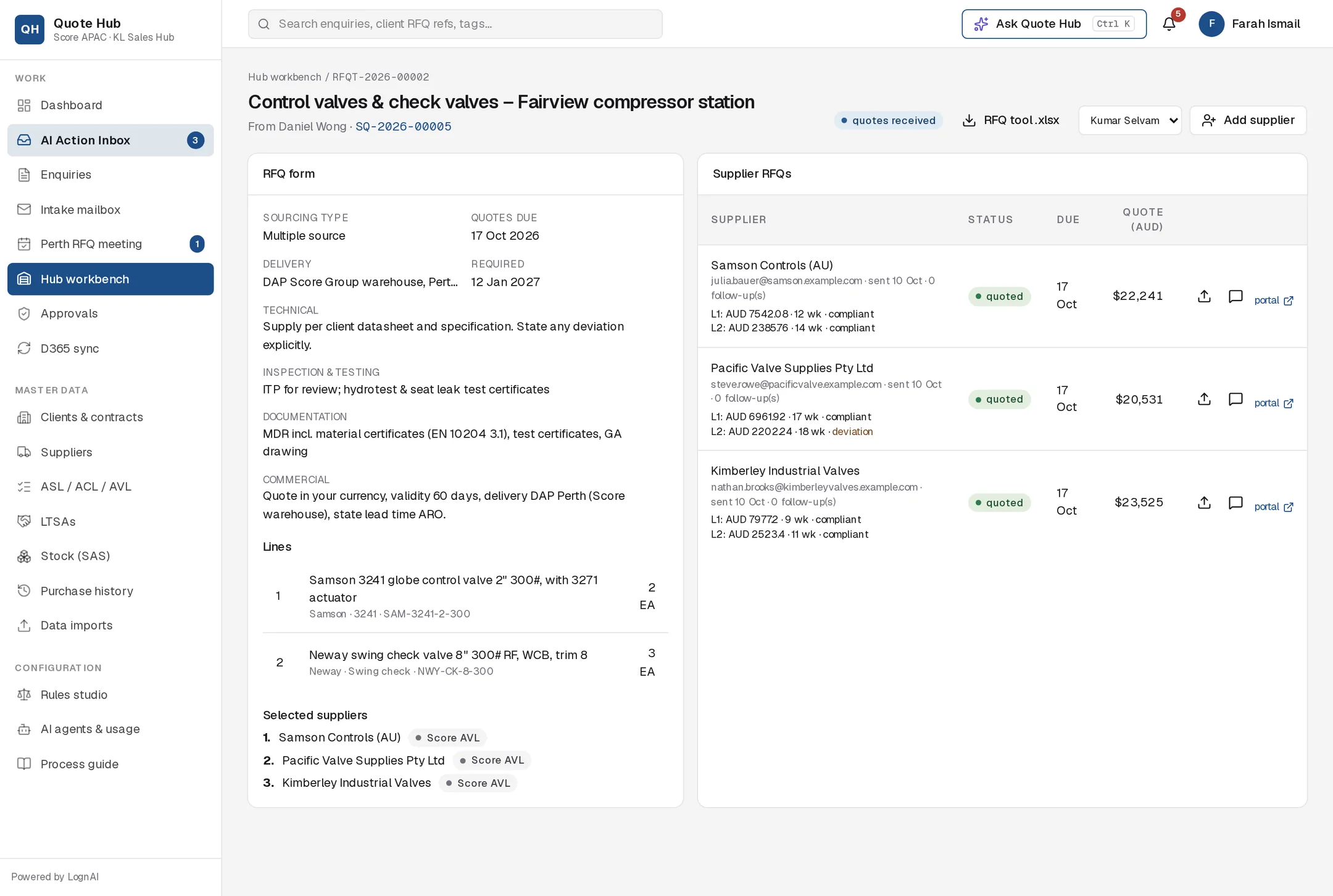
When a quote is recorded
- Prices are converted to AUD and the row shows the quote total and each line's price, lead time and compliance.
- A PDF record copy is filed to the 03 Supplier Quotes folder in the enquiry's OneDrive folder.
- The sales engineer and hub buyer are notified, and the enquiry moves to Supplier quotes in. The sales engineer takes it from there in the Bid check.
- Lines marked as deviation or alternate are checked against the client specification. The findings appear in Agent trace.
- When every invited supplier has quoted or declined, the form shows quotes received.
Revisions
A new quote from the same supplier, by portal or upload, becomes the next revision and replaces the previous one in the bid check. The revision number shows next to the status on the enquiry's Sourcing tab.