D365 sync
Send opportunities, RFQs and quotations to Dynamics 365 as import files, and track each batch.
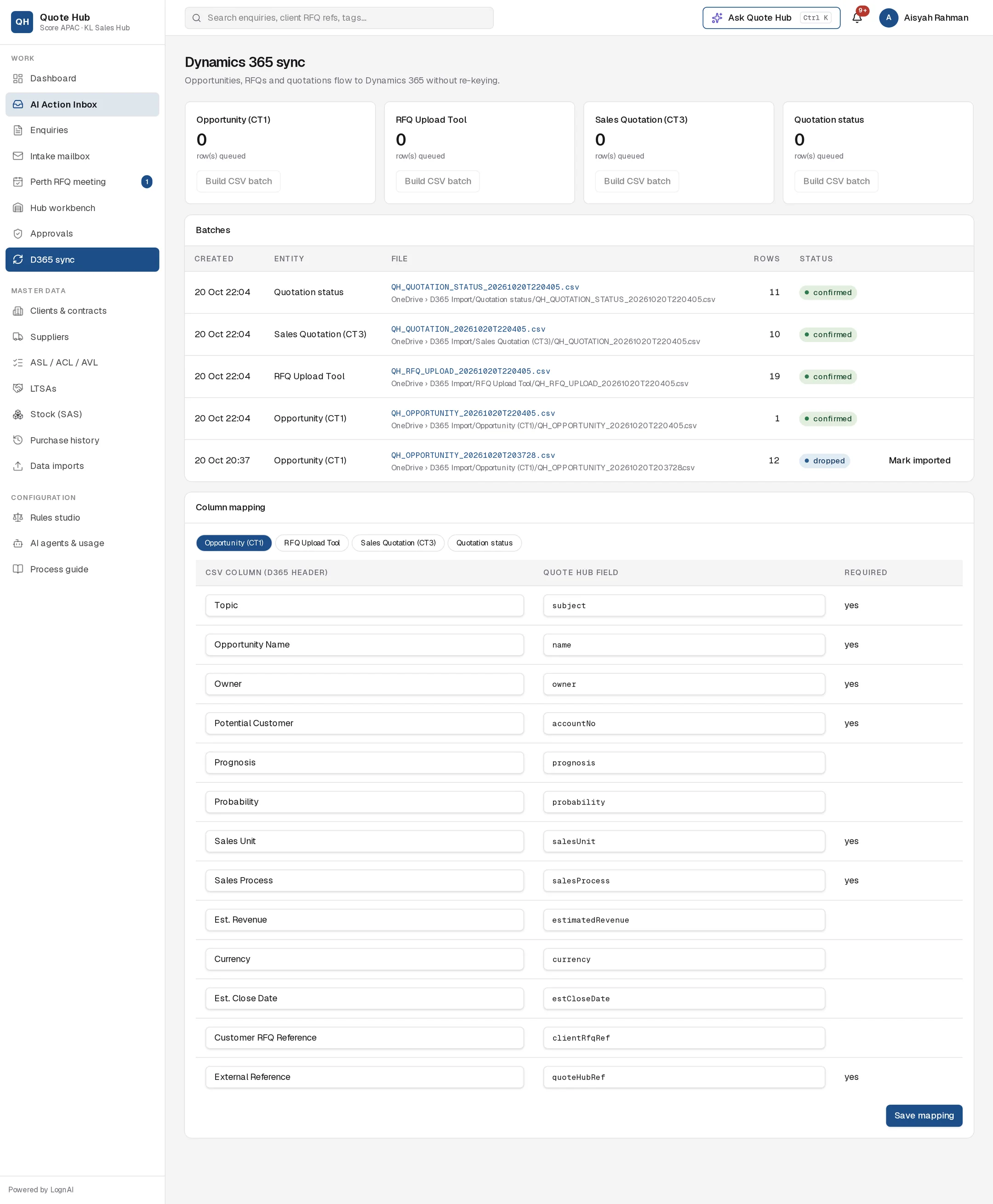
Quote Hub records opportunities, RFQs and quotations once, then sends them to Dynamics 365 as CSV import files so nobody re-keys them. The D365 sync page is where you build those files, track them and set the column headers D365 expects.
How it works
As an enquiry moves through the process, Quote Hub queues rows for D365:
| Record | Queued when | Rows |
|---|---|---|
| Opportunity (CT1) | The opportunity is saved or its proposal approved. See Opportunity. | One per enquiry |
| RFQ Upload Tool | The sales engineer sends the RFQ form to the hub. See Sourcing. | One per line |
| Sales Quotation (CT3) | The quotation is submitted to the client. See Quotation. | One per quotation line |
| Quotation status | The quotation is submitted (Sent), when the enquiry is won or lost, and when a won or lost enquiry with a sent quotation is re-opened (Sent, reason "Re-opened"). See Outcome. | One per event |
If a record changes before it is batched, the new rows replace the queued ones.
Send a batch
Check the queue
Each card at the top shows how many rows are queued for that record type.
Build the file
Select Build CSV batch on the card. Quote Hub puts every queued row of that type into one CSV and drops it in the D365 import folder on OneDrive, in a sub-folder named after the record type. The button is disabled when nothing is queued.
Import in D365
The batch appears in Batches with status dropped. Import the file in D365. Select the file name to download a copy.
Confirm the import
Once D365 has imported the file, select Mark imported. The batch and its rows change to confirmed.
Batches
| Column | What it shows |
|---|---|
| Created | Date and time the file was built |
| Entity | Record type |
| File | File name (select to download) and its folder path |
| Rows | Rows in the file |
| Status | dropped (in the import folder) or confirmed (marked imported) |
The page shows the 40 most recent batches.
Column mapping
Column mapping sets the header of each CSV column and the Quote Hub field that fills it. Select a record type pill, then edit:
- CSV column (D365 header): the header text D365's import template expects.
- Quote Hub field: the Quote Hub value written to that column.
- Required: columns D365 needs. Fixed in this view.
Select Save mapping. The new mapping applies to the next batch you build.
Per-enquiry view
The Activity & D365 tab of each enquiry lists that enquiry's D365 rows with status queued ("awaiting next batch"), batched (with the file name) or confirmed. See Audit log.
Good to know
- Any signed-in user can build batches and mark them imported. Only Administrators and Sales leads can save the column mapping.
- Quote Hub does not read data back from D365. Mark imported records that you have imported the file.
- Each file built and confirmed is listed in the integration activity on Integrations.