Client portal
How clients answer questions, review deviations and accept quotations through a secure Score link.
The client portal is where your client answers clarification questions, downloads the quotation, decides on deviations and accepts or declines the offer. Everything the client does there comes straight back into the enquiry. Clients do not need an account.
How the client gets a link
Quote Hub emails the client contact on the enquiry a link to the portal when you:
- send clarification questions, with an Open Score portal button
- submit the quotation, with a View quotation in portal button and the PDF attached
Each enquiry has one link per client contact. Later emails reuse the same link and extend its expiry.
Signing in
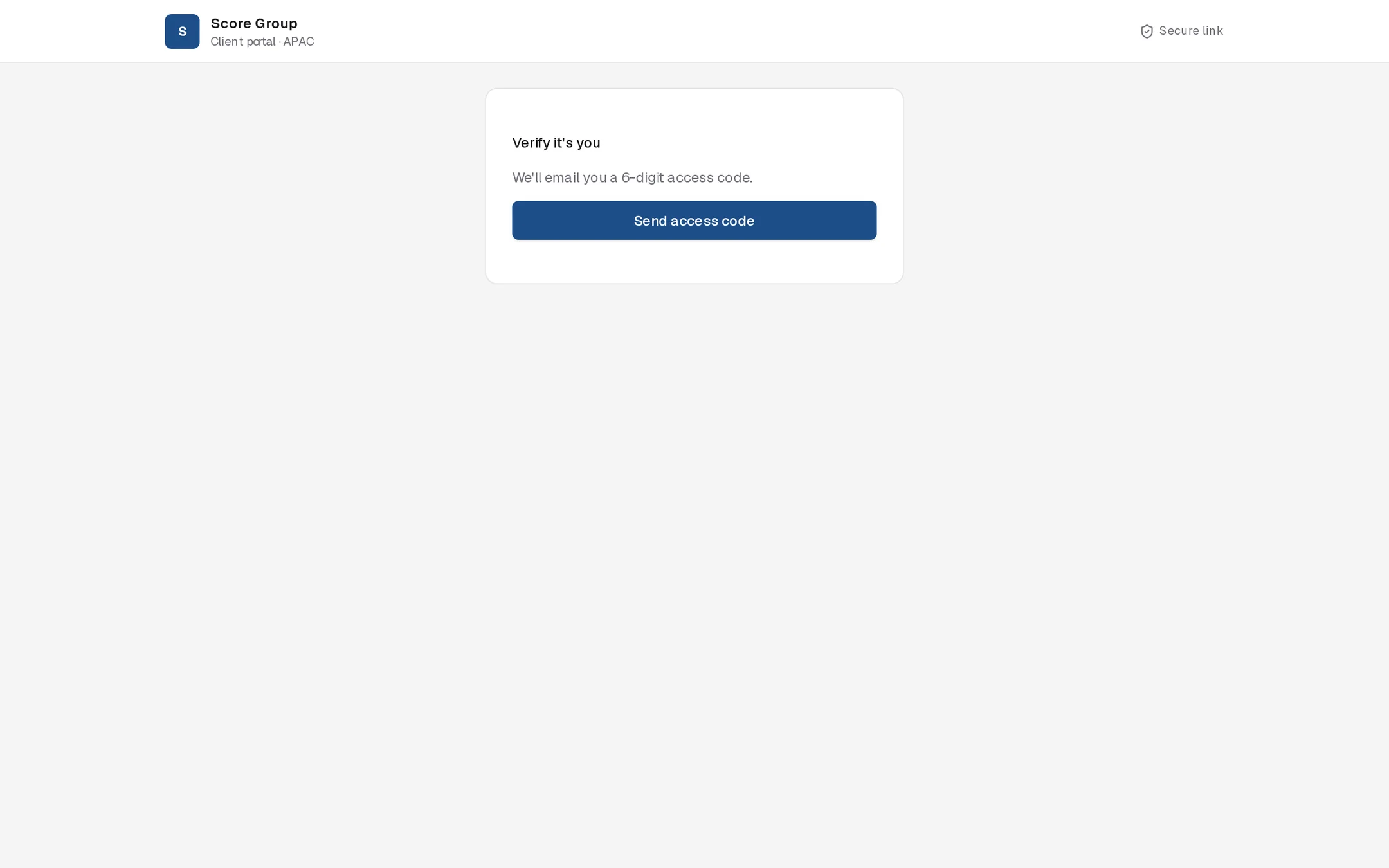
- The client opens the link and selects Send access code.
- Quote Hub emails a 6-digit code to the contact's address.
- The client enters the code and selects Continue.
What the client sees
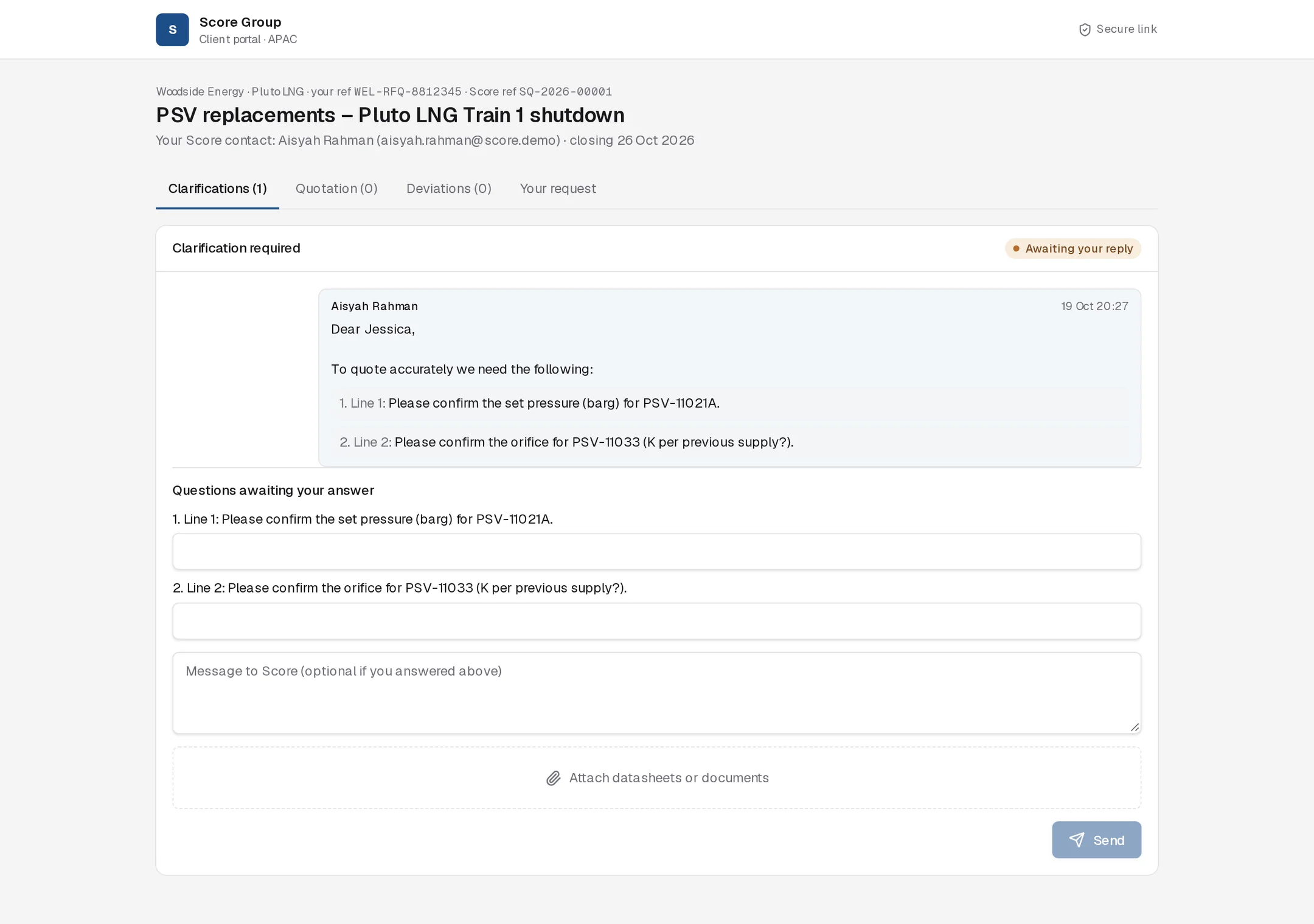
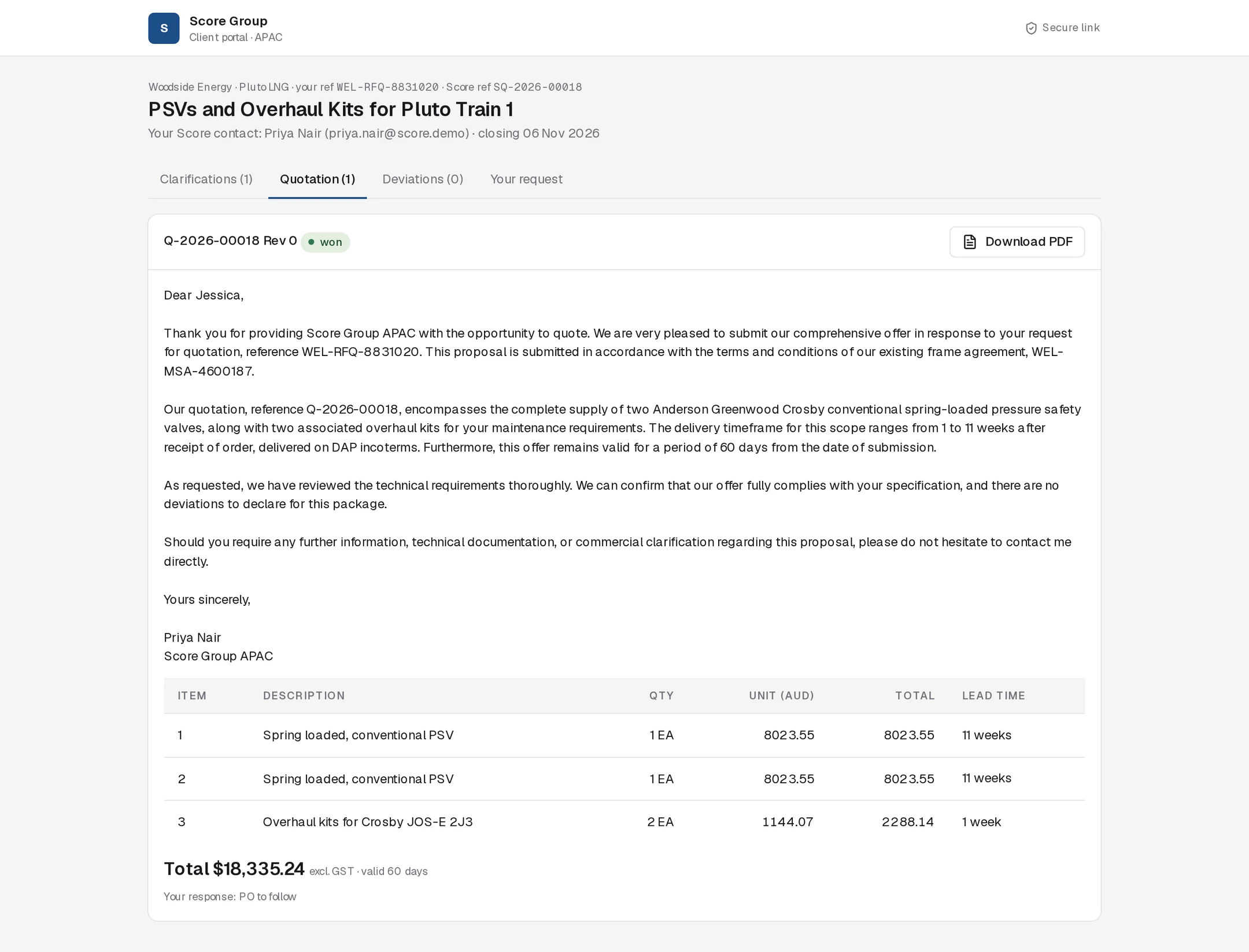
The page header shows the client, site, the client's reference, Score's SQ number, the Score contact with email, and the closing date. Four tabs follow, each with a count:
| Tab | Contents |
|---|---|
| Clarifications | Each question thread from Score, with its status: Awaiting your reply, With Score or Closed |
| Quotation | Each issued quotation and revision, once submitted |
| Deviations | Deviations from the client's specification submitted with the quotation |
| Your request | The lines the client asked for: item number, tag, description, quantity |
The client never sees costs, margins, supplier names or internal notes added by Score staff.
Answering questions
Under Questions awaiting your answer, each open question has its own answer box, with the line number where it applies. The client can also write a message and add files under Attach datasheets or documents (up to 25 MB each), then select Send.
On your side:
- You get a notification that the client replied, and the thread moves to Waiting on Score in Quote Hub (With Score in the portal).
- Attachments are filed to the enquiry's OneDrive folder under 02 Clarifications.
- The Clarification Agent reads the reply and proposes the field changes for you to approve. See Clarifications.
Quotation and deviations
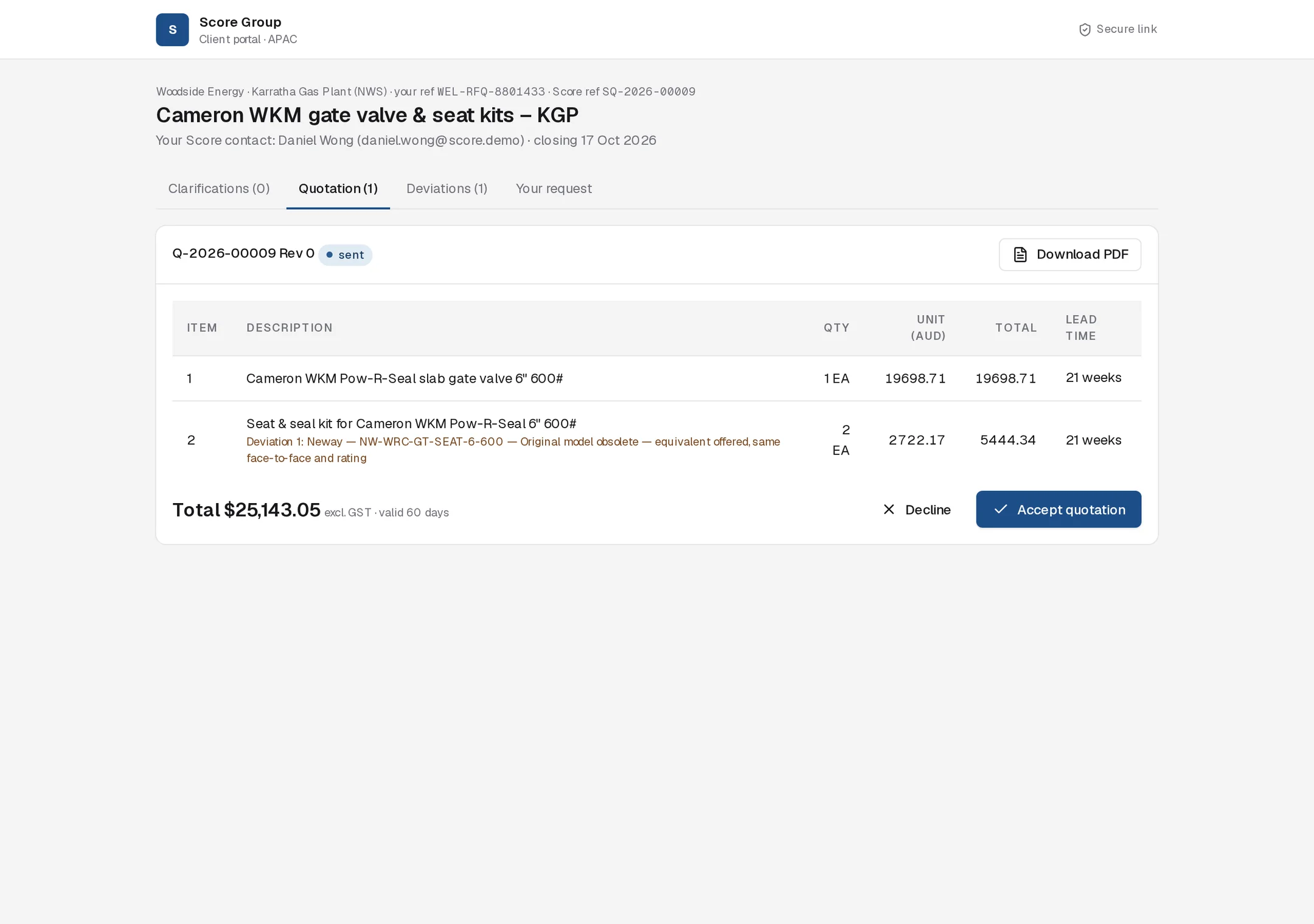
On the Quotation tab the client sees the cover letter, each line with quantity, unit price, total and lead time, deviation notes and no-quote lines, and the total in AUD excluding GST with the validity period. Download PDF downloads the quotation.
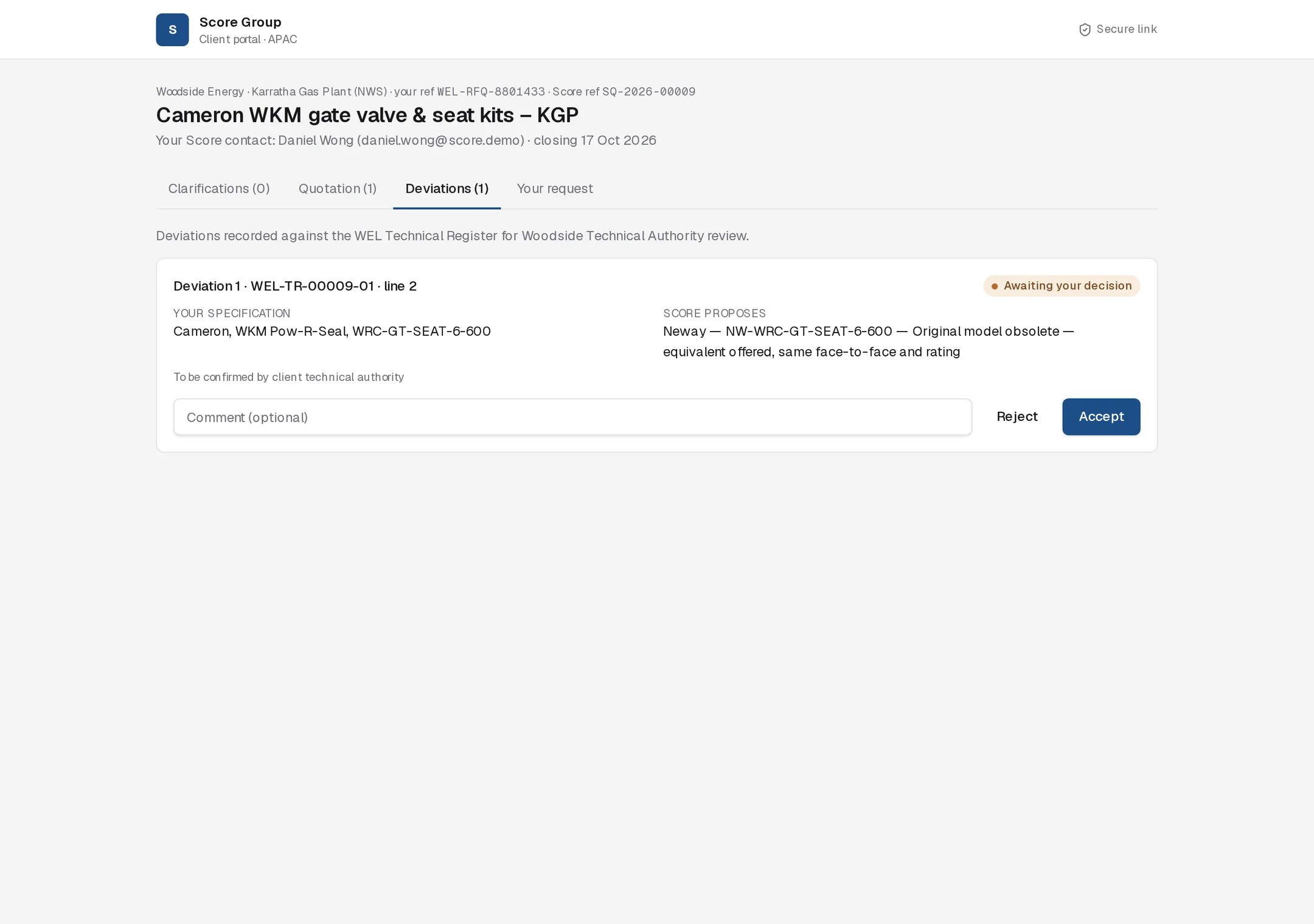
On the Deviations tab each deviation shows the client's specification next to what Score proposes, with the impact and justification. For Woodside, the tab explains that deviations are recorded against the WEL Technical Register for Woodside Technical Authority review, and shows the register reference. The client can add a comment and select Accept or Reject for each deviation.
To respond to the quotation, the client selects Accept quotation (with an optional comment or PO reference) or Decline (with an optional reason).
| Client action | What happens in Quote Hub |
|---|---|
| Accepts or rejects a deviation | The enquiry owner is notified. When no deviations are left open, the enquiry moves from Deviation resolution back to Submitted. |
| Accepts the quotation | The quotation is marked accepted and the enquiry owner is notified. An enquiry in Deviation resolution moves back to Submitted. Acceptance does not mark the enquiry won: the sales engineer records Won when the order arrives. See Outcome. |
| Declines the quotation | The quotation is marked rejected and the enquiry owner is notified. |
Link expiry and security
- Links are long and random, and expire 60 days after they were last issued. Each new email that reuses a link extends its expiry.
- Access codes expire after 10 minutes. After five wrong attempts the client must request a new code. A new code can be requested every 30 seconds.
- Once signed in, the client stays signed in on that browser for 12 hours.
- A link only opens its own enquiry.
Expired link
If a link has expired, the client sees "This link is invalid or has expired." Ask the client to contact you directly, and raise it with your Quote Hub administrator.
For your clients
You can forward this section to a client.
Score Group uses a secure portal for questions and quotations on your enquiry.
- Open the link in Score's email and select Send access code. A 6-digit code is emailed to you; it is valid for 10 minutes.
- Enter the code and select Continue.
- Clarifications: type an answer under each question, attach any datasheets, and select Send.
- Quotation: read the offer and select Download PDF for a copy. Select Accept quotation (you can add your PO reference) or Decline.
- Deviations: compare your specification with what Score proposes, add a comment if needed, and select Accept or Reject for each.
Your Score contact's name and email are shown at the top of the page if you need help.