Quotation
Finalise the client quotation, check it against the client's deviation process and send it through the client portal.
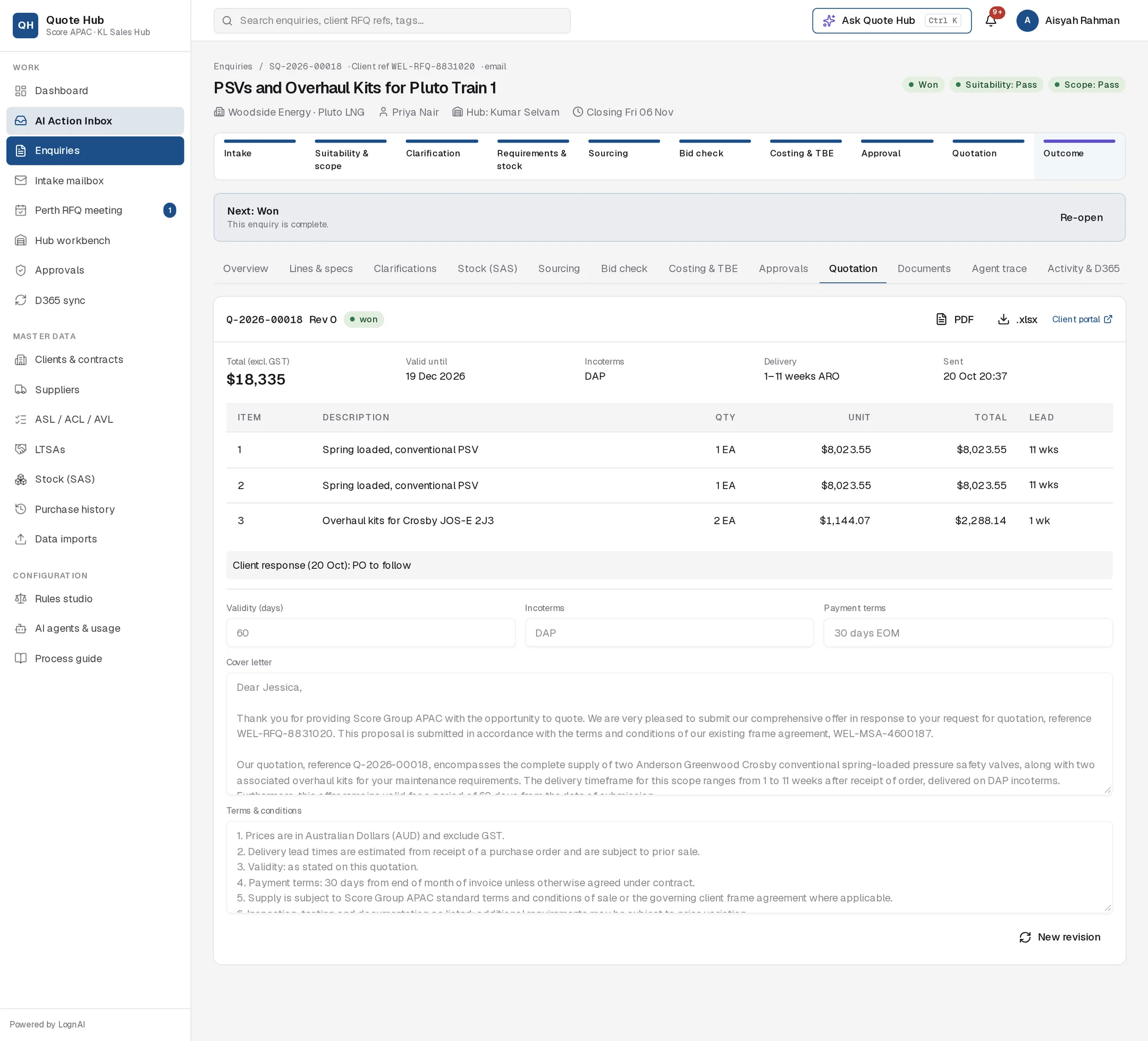
When both approvals are complete, Quote Hub generates the quotation from the approved costing sheet. On the Quotation tab you finish the cover letter and terms, check the PDF and send it to the client.
What the quotation contains
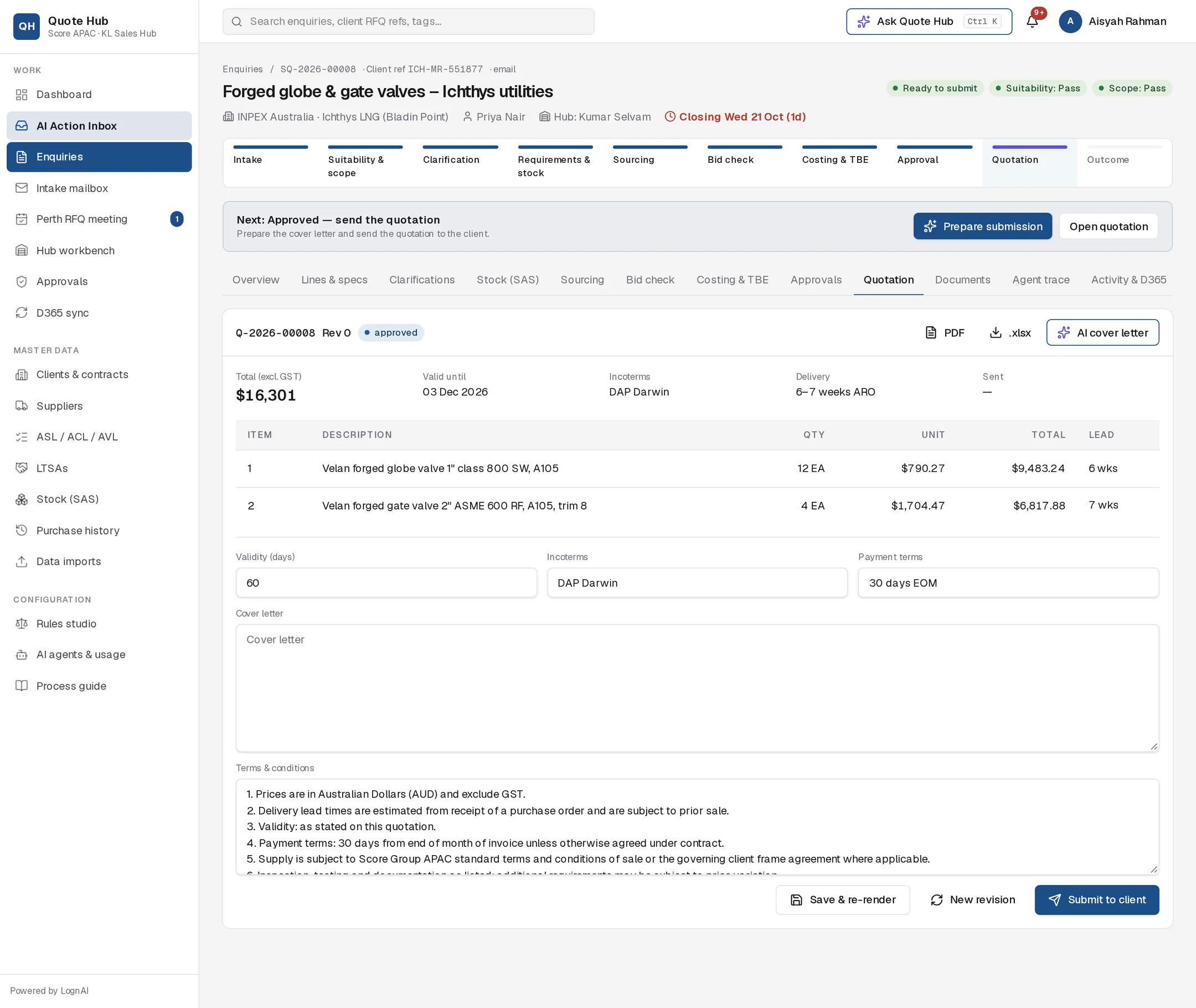
The quotation number follows the enquiry number (SQ-2026-00008 becomes Q-2026-00008). The first issue is Rev 0.
| Field | Default |
|---|---|
| Total (excl. GST) | Sum of the approved sell prices, in AUD |
| Validity | 60 days, counted from the quotation date. Valid until shows the resulting date |
| Incoterms | From the enquiry, otherwise the contract, otherwise DAP |
| Payment terms | From the contract or client record, otherwise 30 days EOM |
| Delivery | Range of line lead times, for example "8–21 weeks ARO", or "21 weeks ARO" when every line has the same lead time |
| Terms & conditions | Score's standard terms |
Line lead times on the quotation add one week to the supplier's lead time for supplier-sourced lines. Lines marked no-quote are listed with their reason. Lines with a deviation show it under the description.
The PDF follows the client's quotation template. If the client record names a template other than the Score standard, that template is used. Otherwise it follows the client's deviation process: the Woodside layout puts deviations on the cover page with their WEL Tech Register references, the Chevron layout adds a Client Deviation Form page, and the Score standard layout lists technical deviations after the pricing schedule. Each time the PDF is rendered, the PDF and .xlsx are filed to the 05 Quotation folder in the enquiry's OneDrive folder.
Prepare and send
Prepare the submission
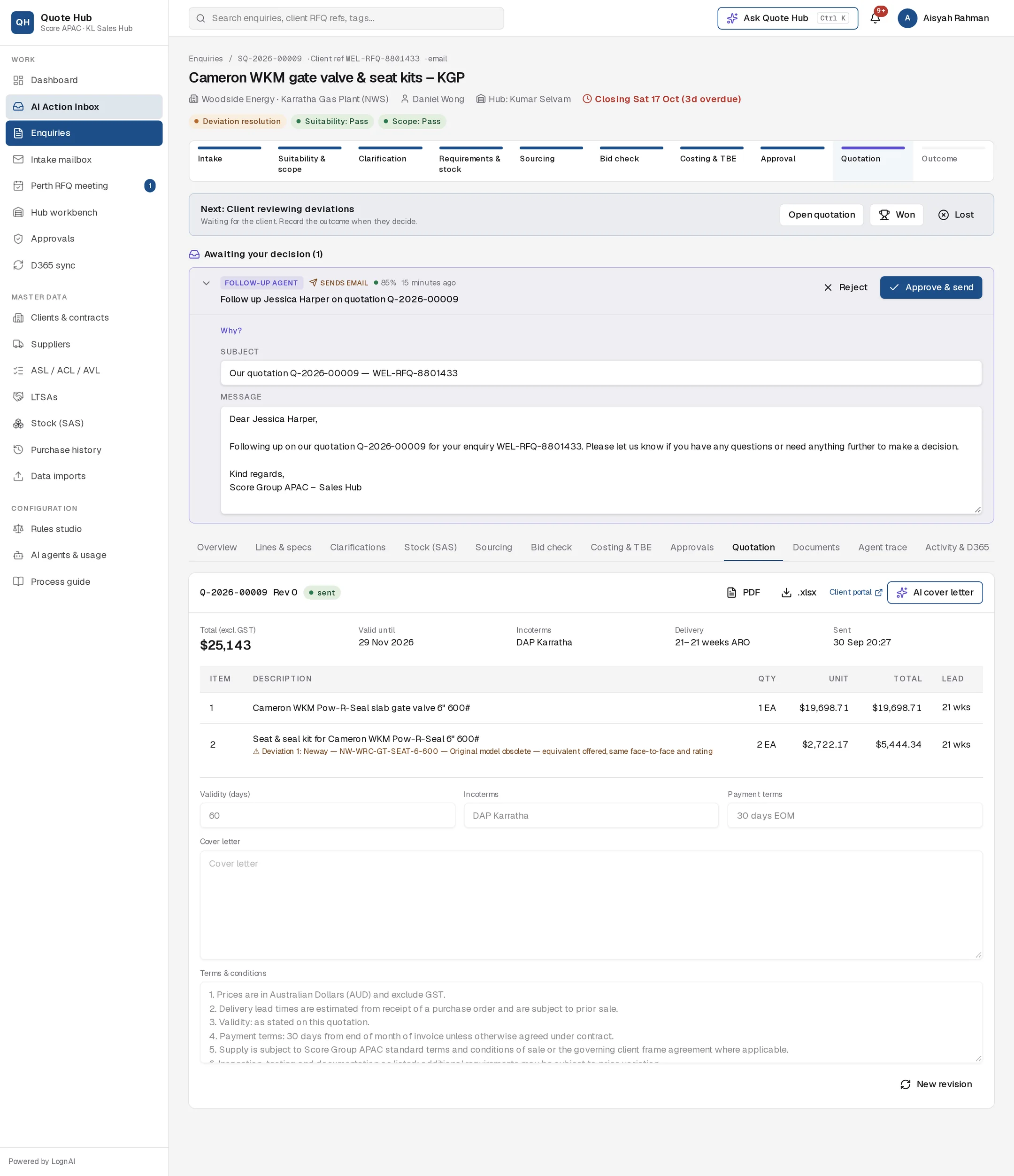
Select Prepare submission in the next-action bar, or AI cover letter on the tab. The Quotation Agent writes the cover letter into the quotation, re-renders the PDF and proposes the submission with a pre-submission checklist.
Review the quotation
Edit Validity (days), Incoterms, Payment terms, Cover letter or Terms & conditions, then select Save & re-render. Open the PDF to check the final layout.
Check the checklist
On the proposal, select Why? to see each checklist item with a tick or cross: client reference quoted, all lines priced, lead times stated, validity, Incoterms, deviations declared per client process, contract number quoted and approvals complete.
Send
Edit the email message on the proposal if needed and select Approve & send. Or select Submit to client on the tab and confirm.
Approval first
Submit to client stays disabled until technical and commercial approval are complete. The enquiry also needs a client contact with an email address.
What sending does
- The client contact gets an email with the PDF attached and a link to the quotation in the client portal.
- The quotation status changes to sent and the sent date is recorded.
- A Sales Quotation (CT3) record and a "Sent" status update are sent to the D365 import folder. See D365 sync.
- Open deviations change to Submitted to client and the enquiry moves to Deviation resolution. With no deviations, it moves to Submitted.
Deviations by client
Deviations are logged on the WEL Tech Register for Woodside Technical Authority (WTA) approval. Each one carries a WEL Tech Register reference and a WTA status, and appears on the quotation cover page. Download the register from Costing & TBE with WEL register .xlsx. When the client accepts or rejects a deviation in the portal, the WTA status updates to approved or rejected.
Client response
In the portal the client can accept or reject each deviation, with a comment, and can accept or decline the quotation. You are notified of each decision. Deviation decisions show in the deviation register on Costing & TBE. The client's comment on the quotation shows on the Quotation tab as Client response.
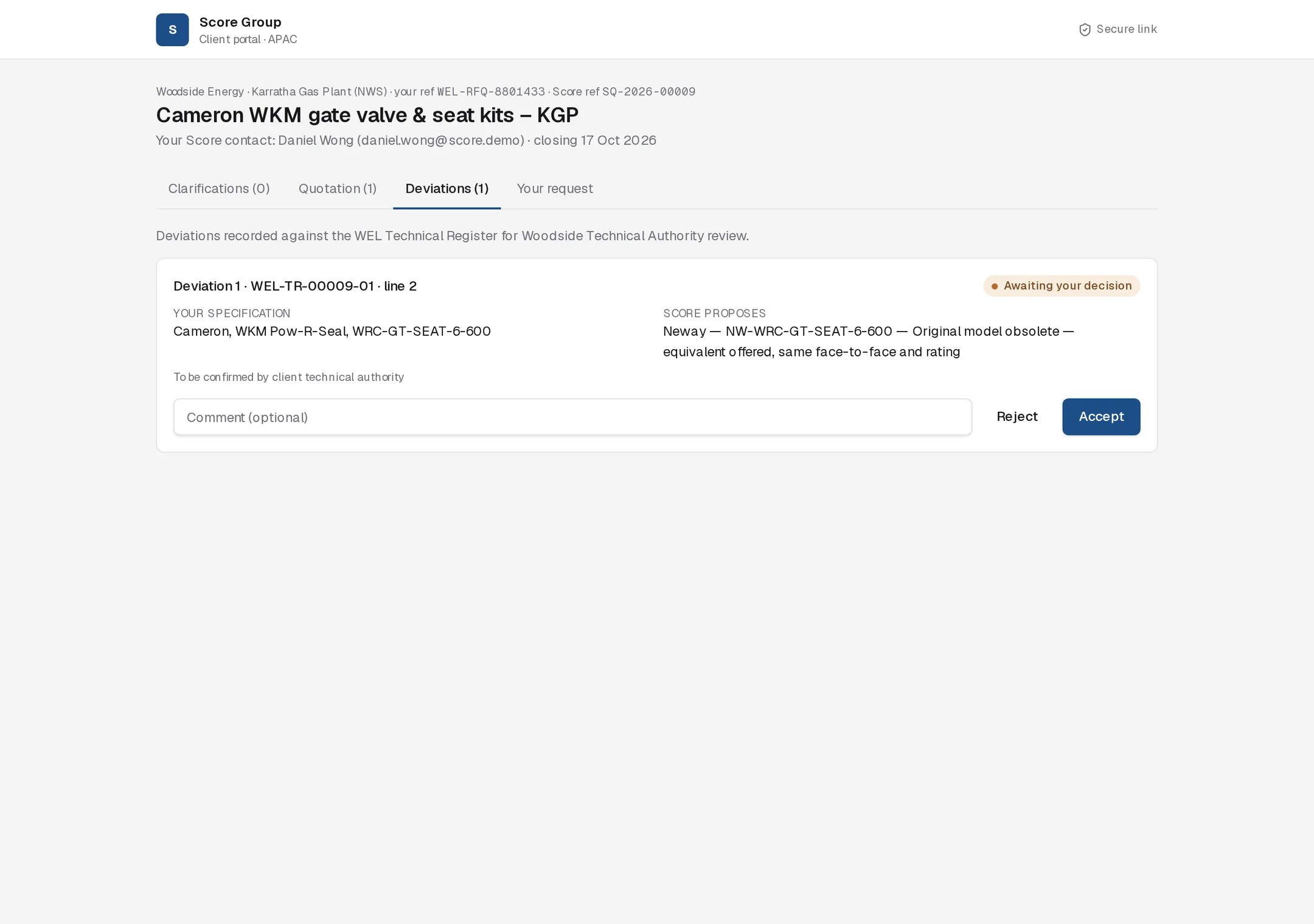
When the client resolves the last open deviation, or accepts the quotation, the enquiry moves from Deviation resolution back to Submitted. Accepting the quotation does not mark the enquiry won.
Record the outcome when the client decides, and select Won yourself when the PO or award arrives. See Outcome.
Revisions
Select New revision to create the next revision (Rev 1, Rev 2…) from the current costing sheet, keeping your cover letter and terms. An unsent earlier revision is marked superseded. Earlier revisions are listed under Revision history.