Asking the client
Send clarification questions to the client, read their answers and update the enquiry.
When an enquiry is missing information, ask the client through the client portal. The questions, answers and attachments stay together on the enquiry, and the answers can update the lines directly.
How it works
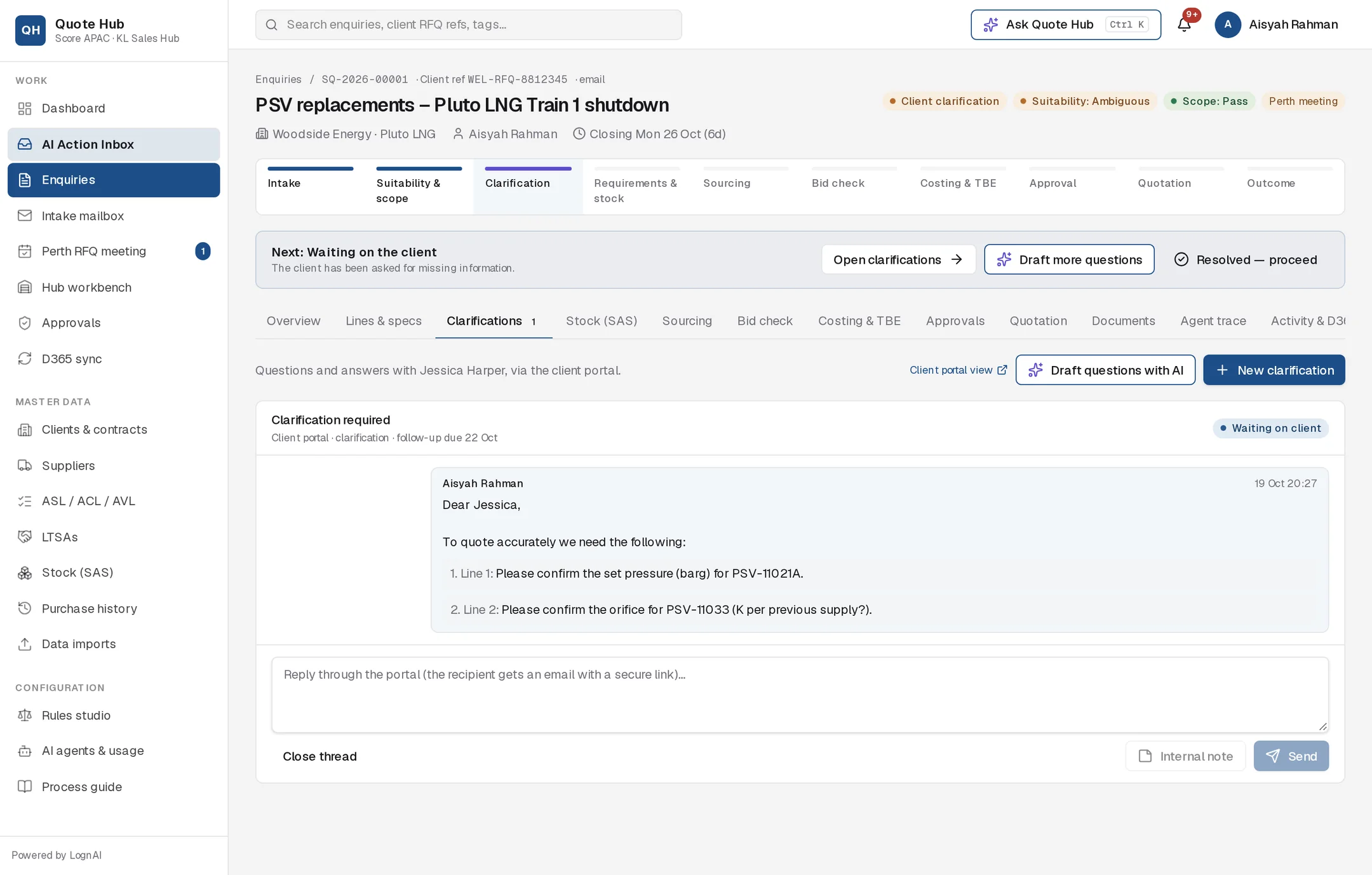
Questions go to the client contact by email, with a secure link to the client portal. The client answers each question in the portal and can attach files. Sending the first clarification moves the enquiry to the Client clarification stage.
Drafts the questions from the open screening findings and the line specifications, grouped by line and specific to each item, for example "Line 1: please confirm the set pressure (barg) for PSV-11021A". When the client replies, it reads the answers and any attachments and proposes the resulting changes to the enquiry, quoting the client as evidence. If something is still unanswered, it drafts a follow-up question. Nothing is sent or changed until you approve it.
Send questions
Get a draft
Screening often proposes questions already. If not, select Draft questions with AI on the Clarifications tab, or Draft more questions on the Next: bar.
Review the card
Expand the Ask … clarification question(s) card. Edit the subject, the introduction, the line number and wording of each question, or remove a question.
Send
Select Approve & send.
Read the answers
Each conversation with the client is a thread on the Clarifications tab. The thread header shows the subject, the next follow-up date and the status.
| Status | Meaning |
|---|---|
| Waiting on client | Waiting for the client. |
| Waiting on Score | The client has replied. Your move. |
| Closed | No further action. |
In the portal the client sees the same thread as Awaiting your reply or With Score.
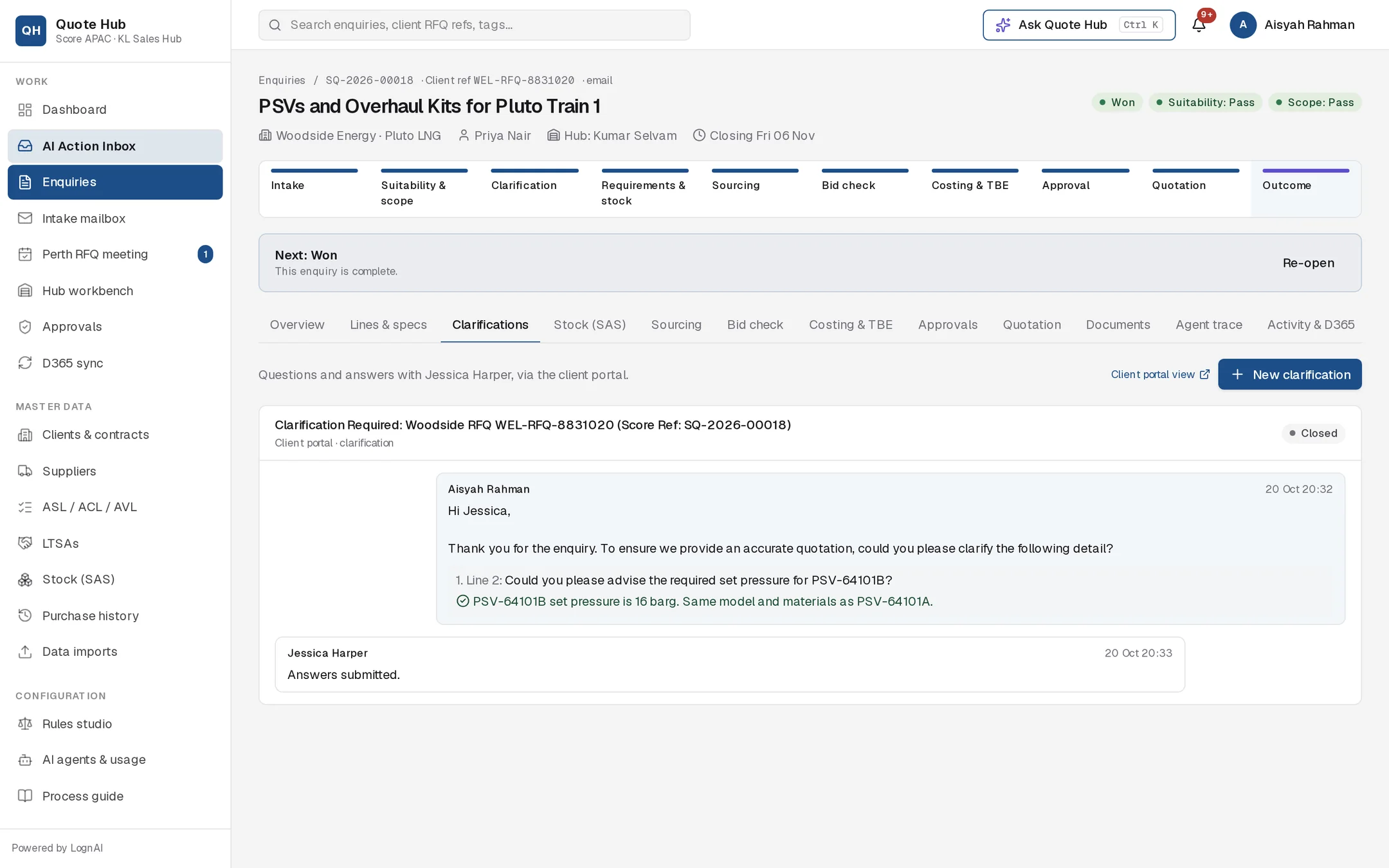
Answers appear in green under each question. Client attachments are listed under their message and can be downloaded. You are notified when the client replies. Use Client portal view to see the portal as the client sees it.
Apply the answers
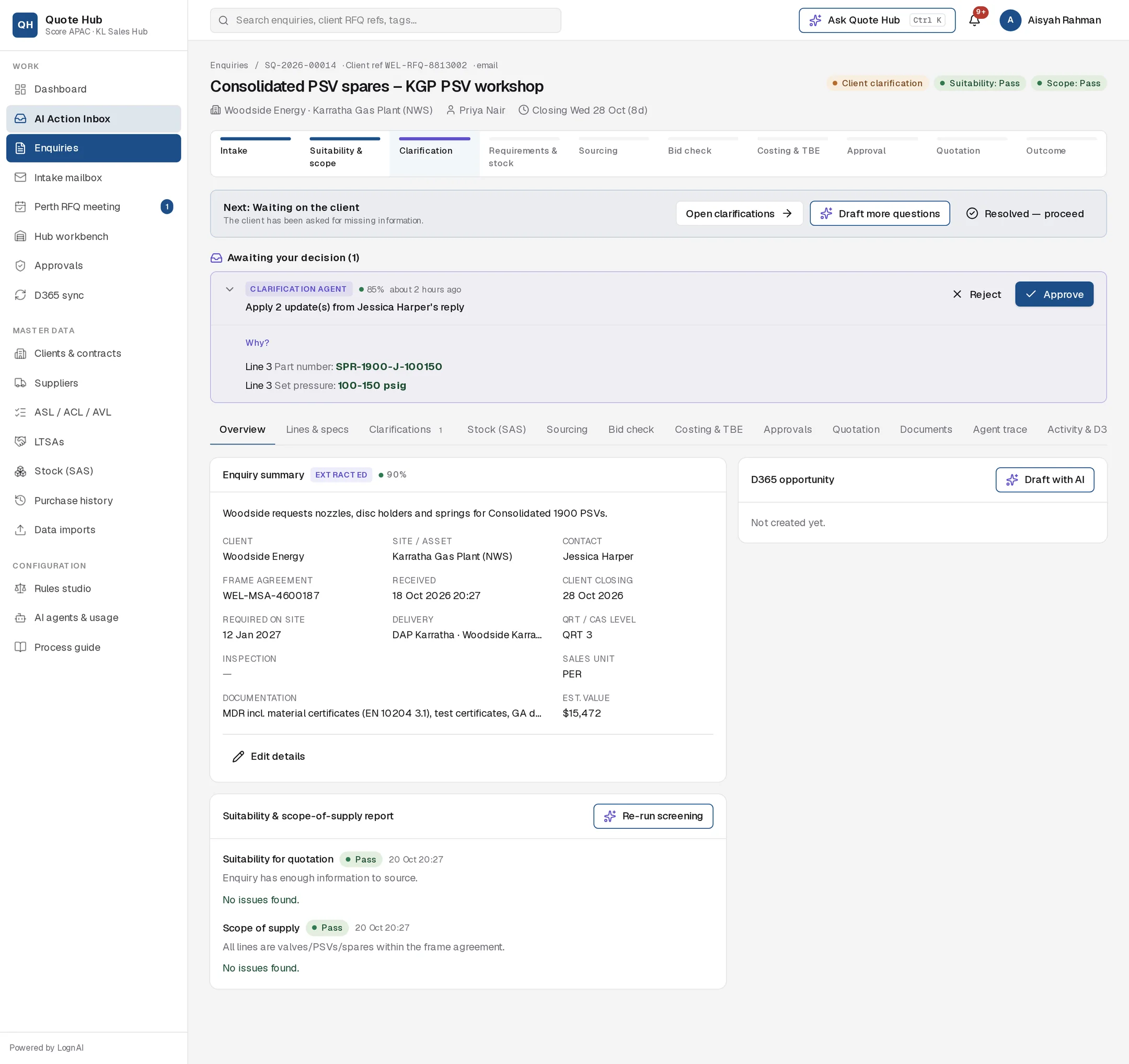
After a reply, the Clarification Agent proposes Apply … update(s) from …'s reply. Expand it to see each change, such as a part number or set pressure on a line, with the client's words as evidence. Approving it updates the lines and enquiry fields, marks those values as confirmed and runs screening again. If every question was answered, the thread closes.
Reply or close a thread
Type in the reply box and select Send to answer the client through the portal. Select Close thread when nothing more is needed.
When the information is complete, select Resolved — proceed on the Next: bar. The enquiry moves to Requirements review and the stock check starts.
Automatic follow-ups
If the client has not answered, the Follow-up Agent drafts a reminder. It appears for your approval like any other card, and is only sent when you select Approve & send.
By default the first reminder is drafted two days after the questions are sent, then every three days, up to three reminders. An administrator sets these timings in Automation.
Good to know
- The enquiry needs a client contact with an email address. Set it with Edit details on the Overview tab.
- A client reply that arrives by email and quotes the SQ number or the client RFQ reference is added to the latest client thread.
- Send posts your message to the client in the portal. Internal note stays inside Quote Hub and is labelled "internal note, not shown in the portal". The client never sees it.